

Instructions for working with the Telegram marketing service
What kind of service is this?
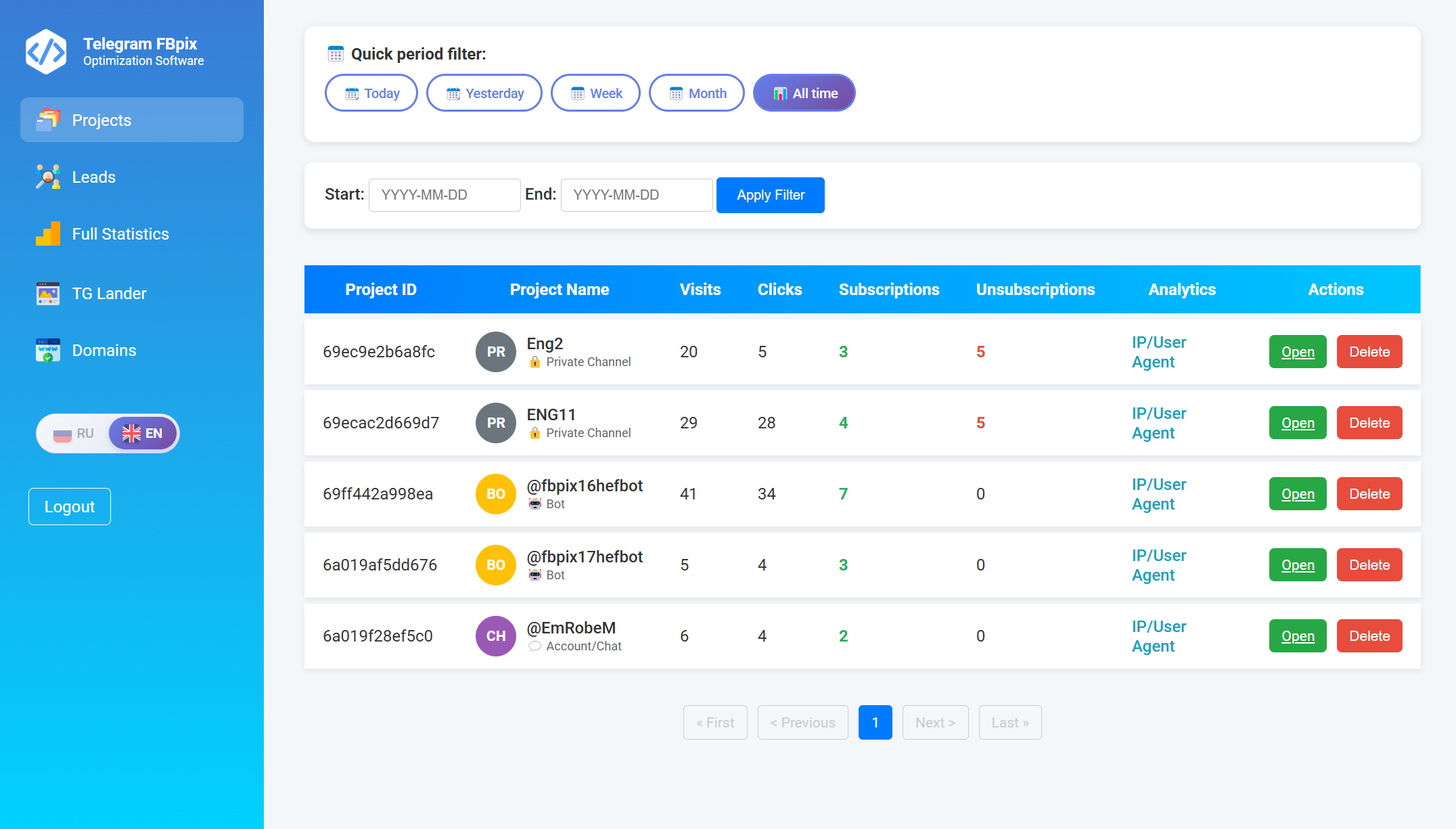
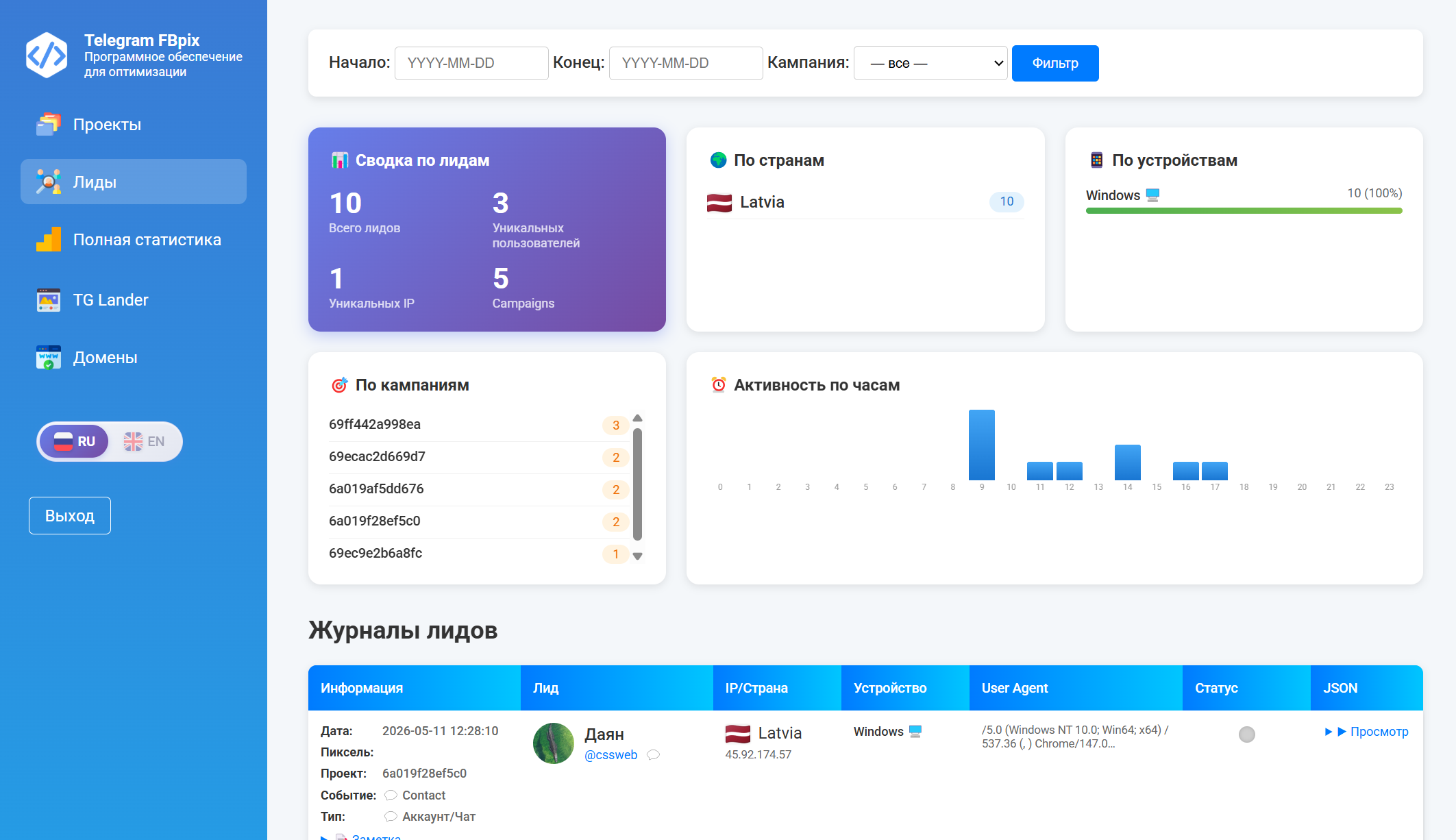
This is a ready-made system that helps you launch advertising campaigns in Telegram and track their effectiveness through Facebook (Meta). In simple words, you create a beautiful page (landing page), set up a bot, group, account, channel, and the system automatically counts applications, subscribers and sends the data back to Facebook so that advertising algorithms work better.
The service consists of two parts:
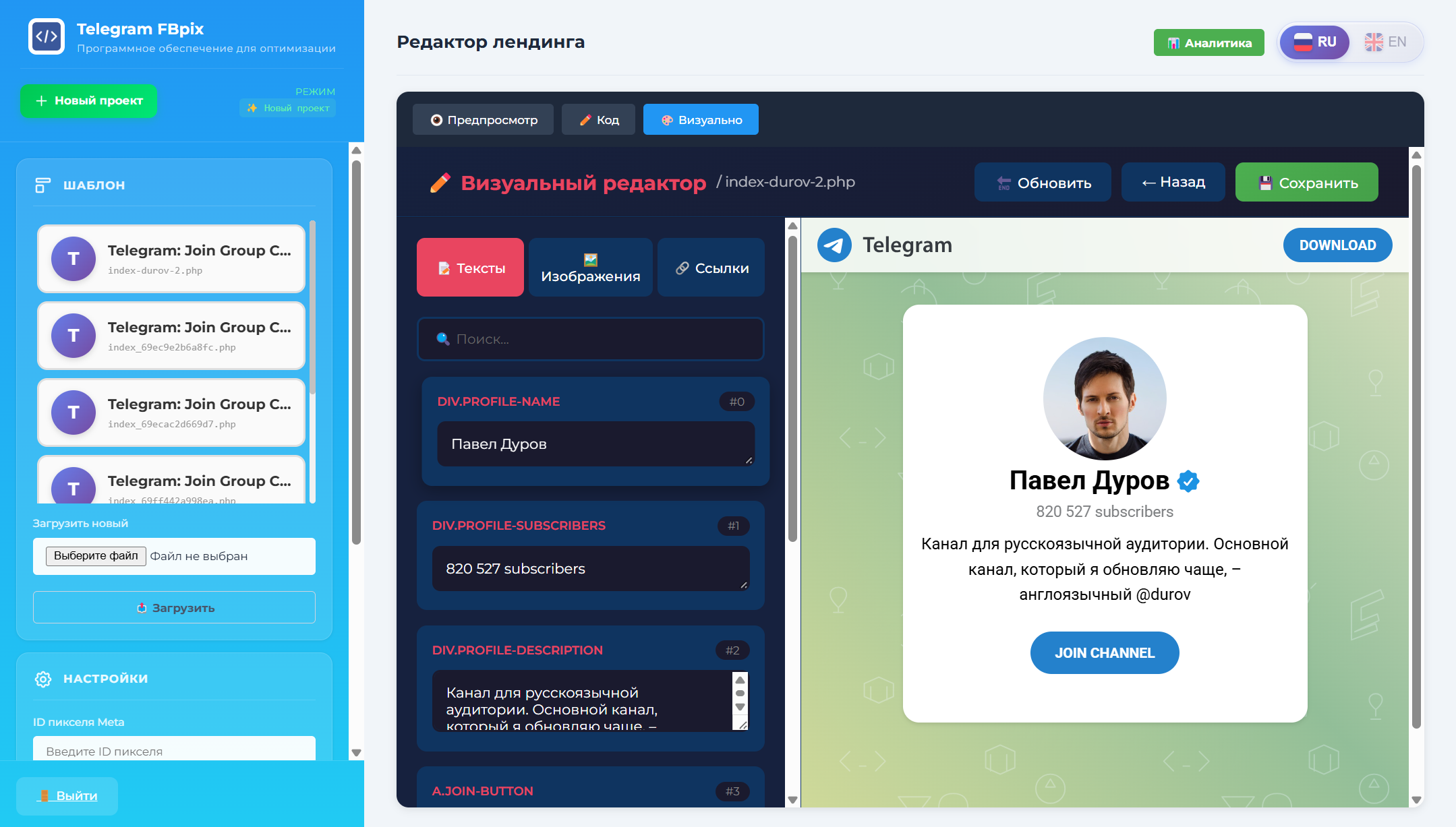
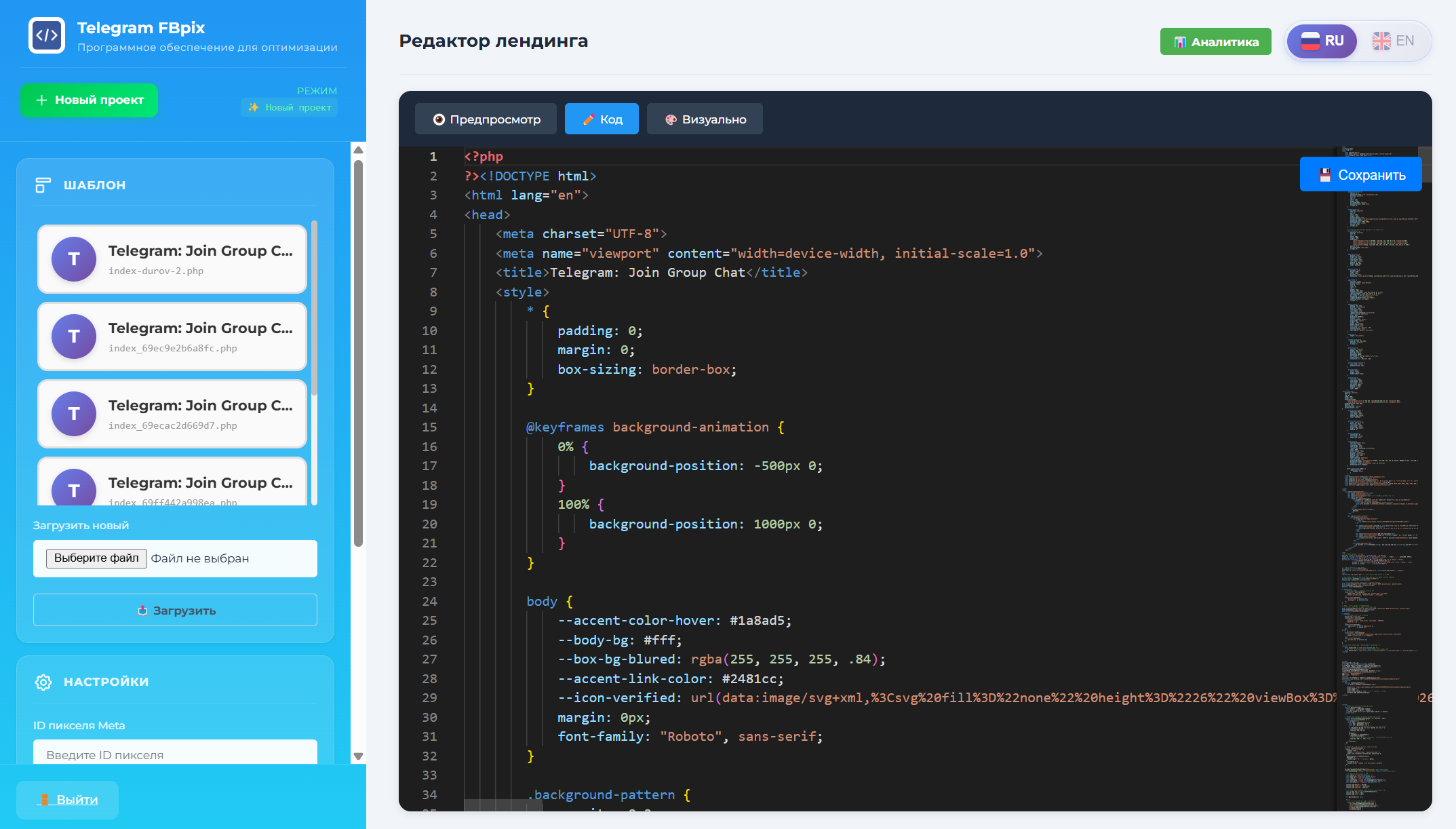
Web panel (Admin website): Here you create landing pages, connect domains and view statistics.
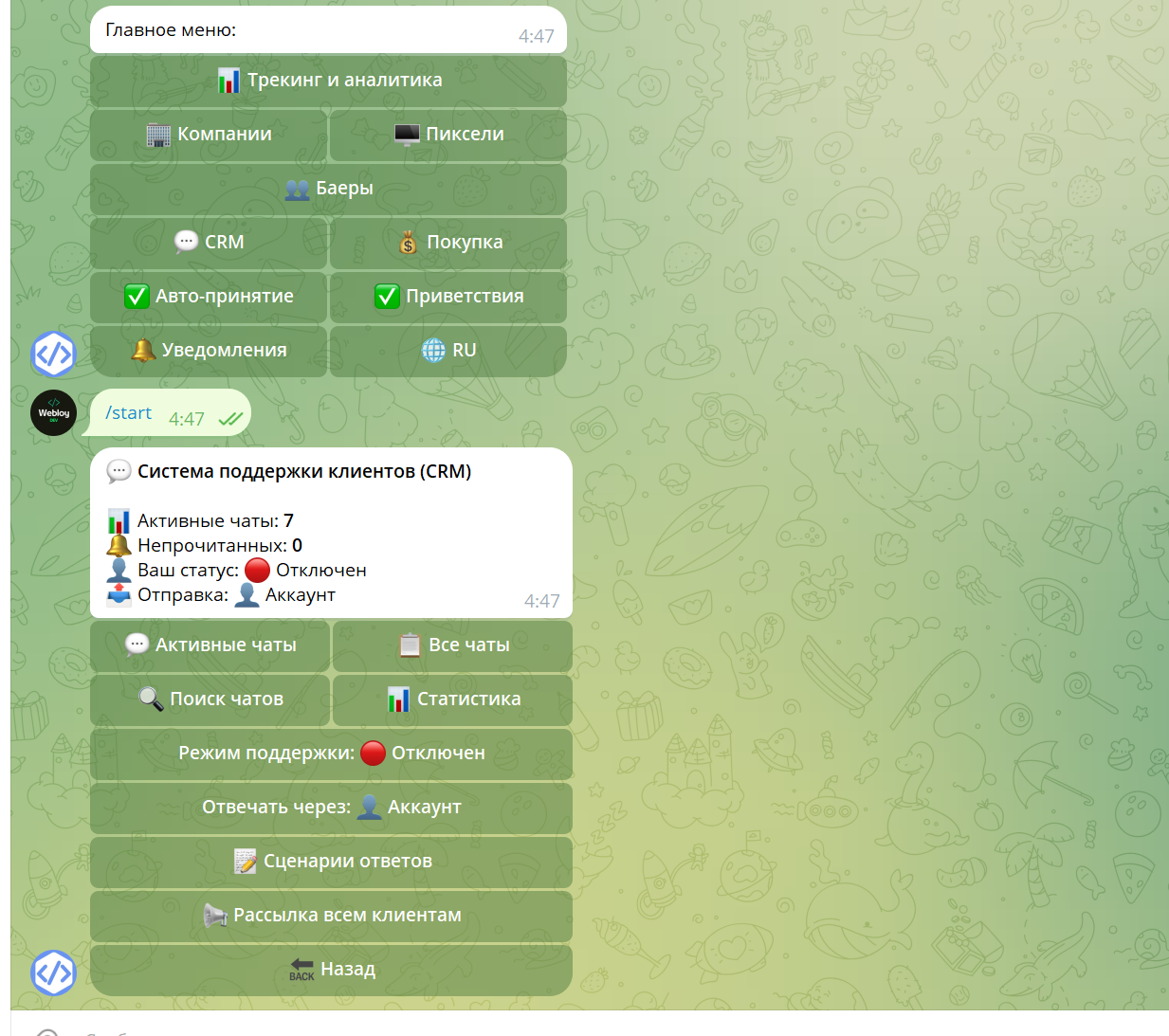
Telegram bot: Here you set up your own advertising campaigns (bot, account, channel, group), manage clients (CRM) and receive notifications about new applications.
How it works: the customer journey
The user sees your ad on Facebook and follows the link to the landing page.
On the landing page, he presses the button to go to Telegram (subscribe to the channel or launch a bot).
The system records this event as a target action (lead, subscription).
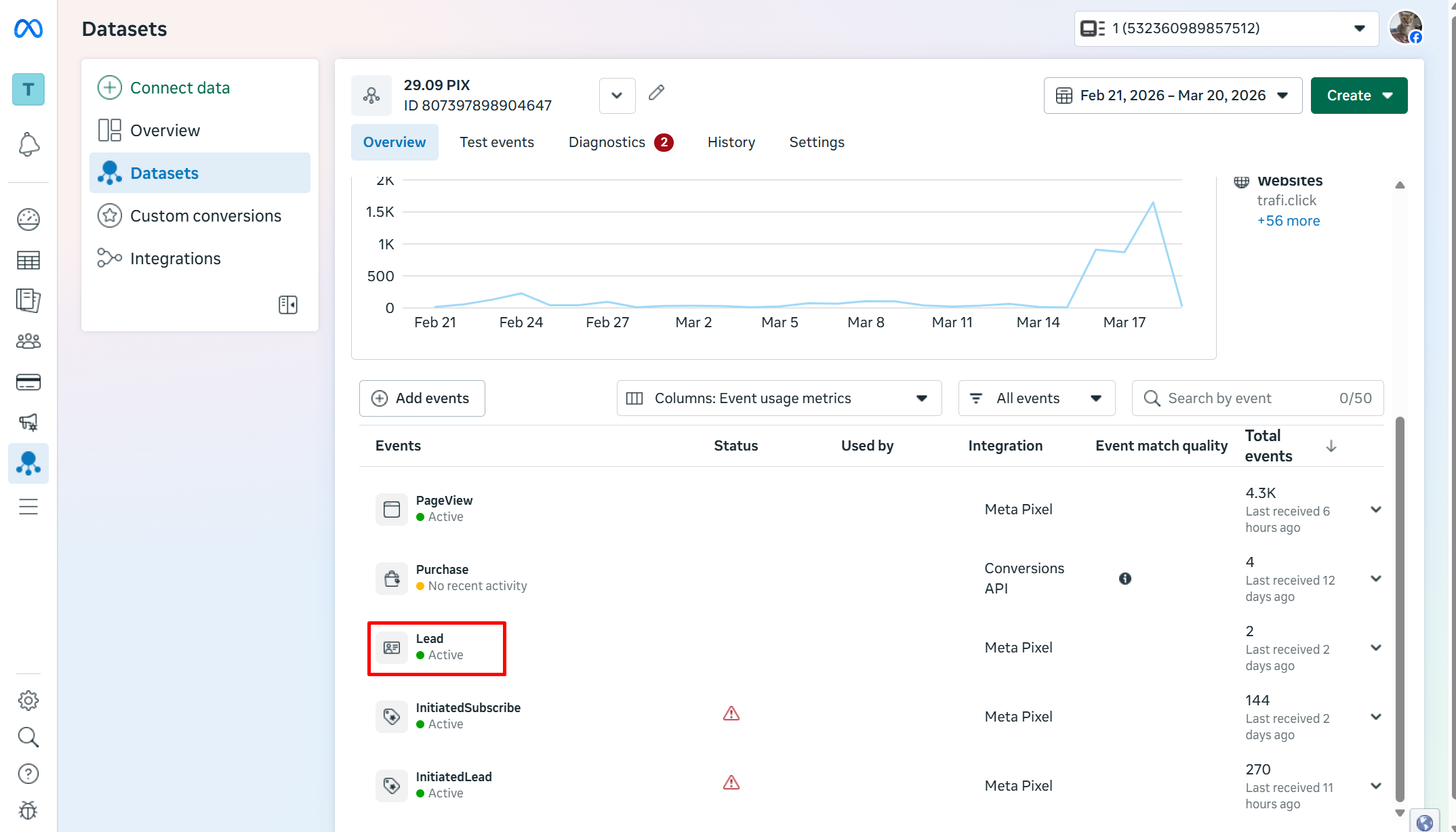
The service sends information about this action back to Facebook Pixel (via the Conversion API) so that the advertiser can see the real cost of the application.
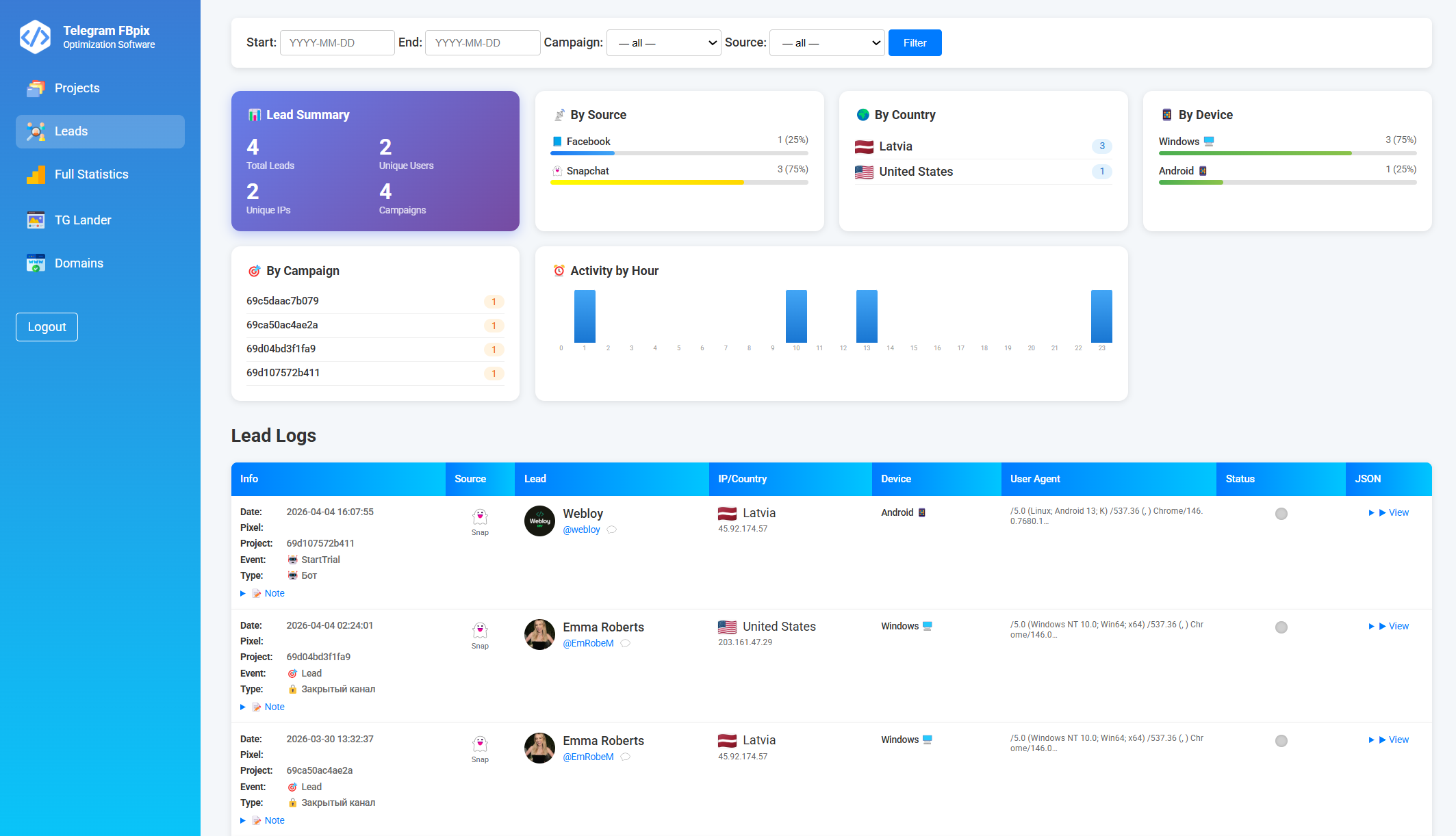
All statistics on clicks and applications are collected in your analytics panel.
Key features for a marketer
Creating landing pages: Quickly set up landing pages with a button to go to Telegram.
Tracking: The system understands which ad the user came from, whether he subscribed or not.
Sending events to Facebook (CAPI): Automatic transmission of data on subscriptions and applications to the advertising account.
CRM for Telegram: Everyone who wrote to your bot gets into the database. You can answer them directly from the system or assign someone responsible.
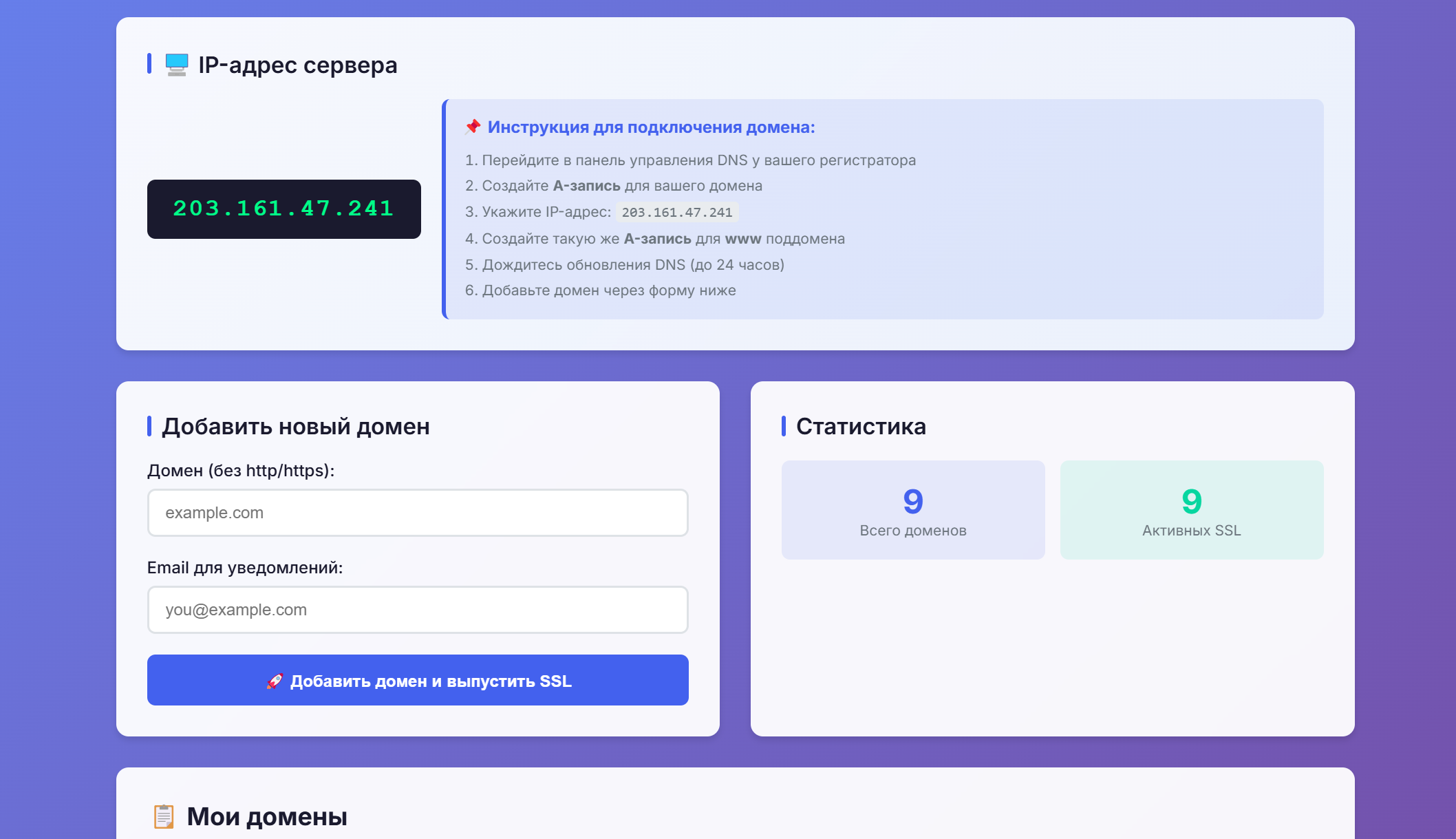
Working with domains: Quickly connect your domains for landing pages and issue SSL certificates.
Statistics: View the number of clicks, subscriptions, unsubscribes and chats for each project.
Where to start: a step-by-step campaign launch plan
This is what a standard launch using the service looks like:
Step 1. Preparing the server (done by a technician)
This step is usually performed by an administrator or developer.
The system is installed on the server (Ubuntu).
The domain is connected and an SSL certificate is issued.
The main service (Telegram bot) starts.
Step 2. Creating a landing page (Web panel)
You go to the admin panel of your service (website).
Choose a landing page template.
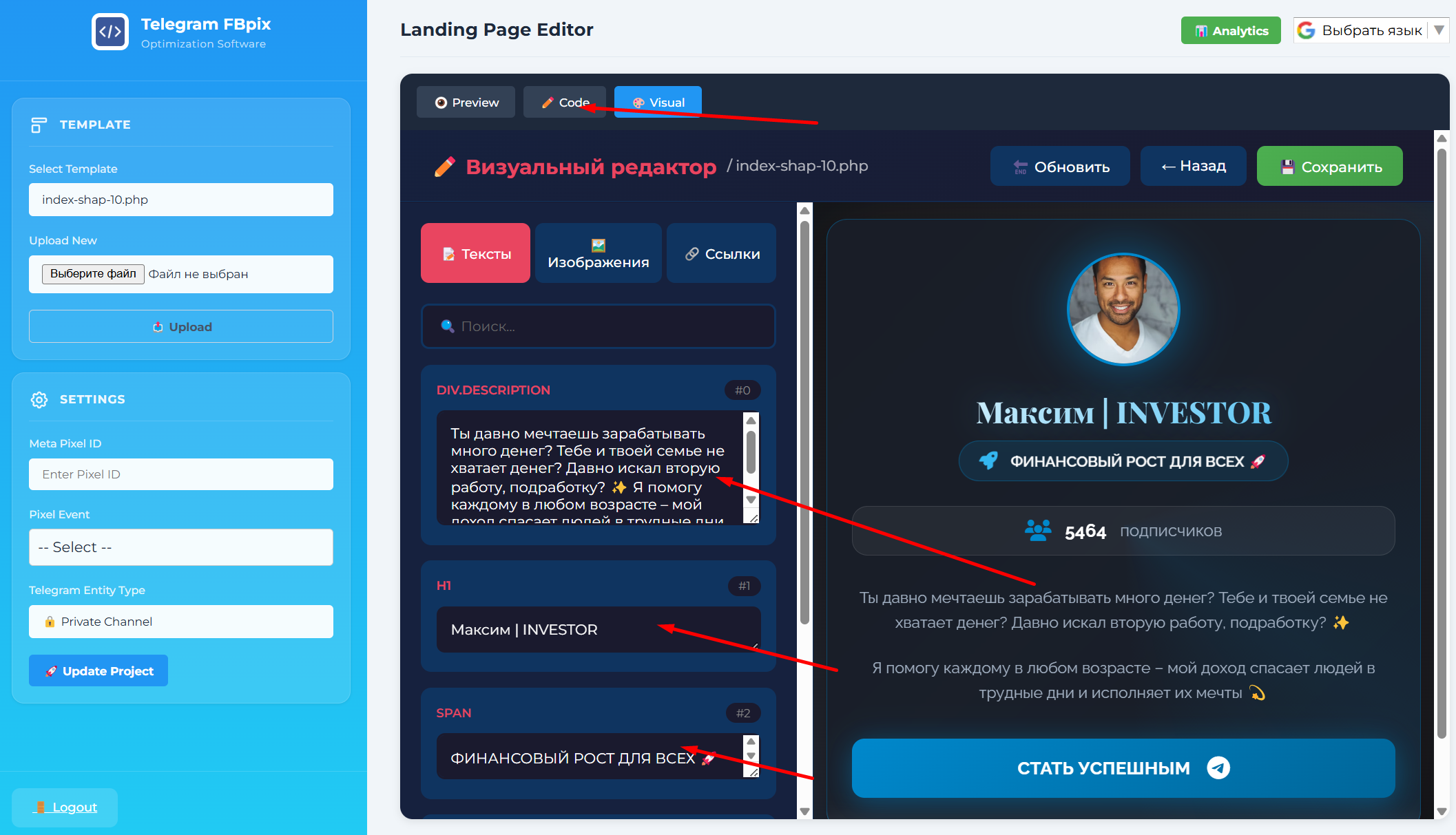
Edit text, image and button.
Provide a link to your Telegram bot or channel.
Save the project.
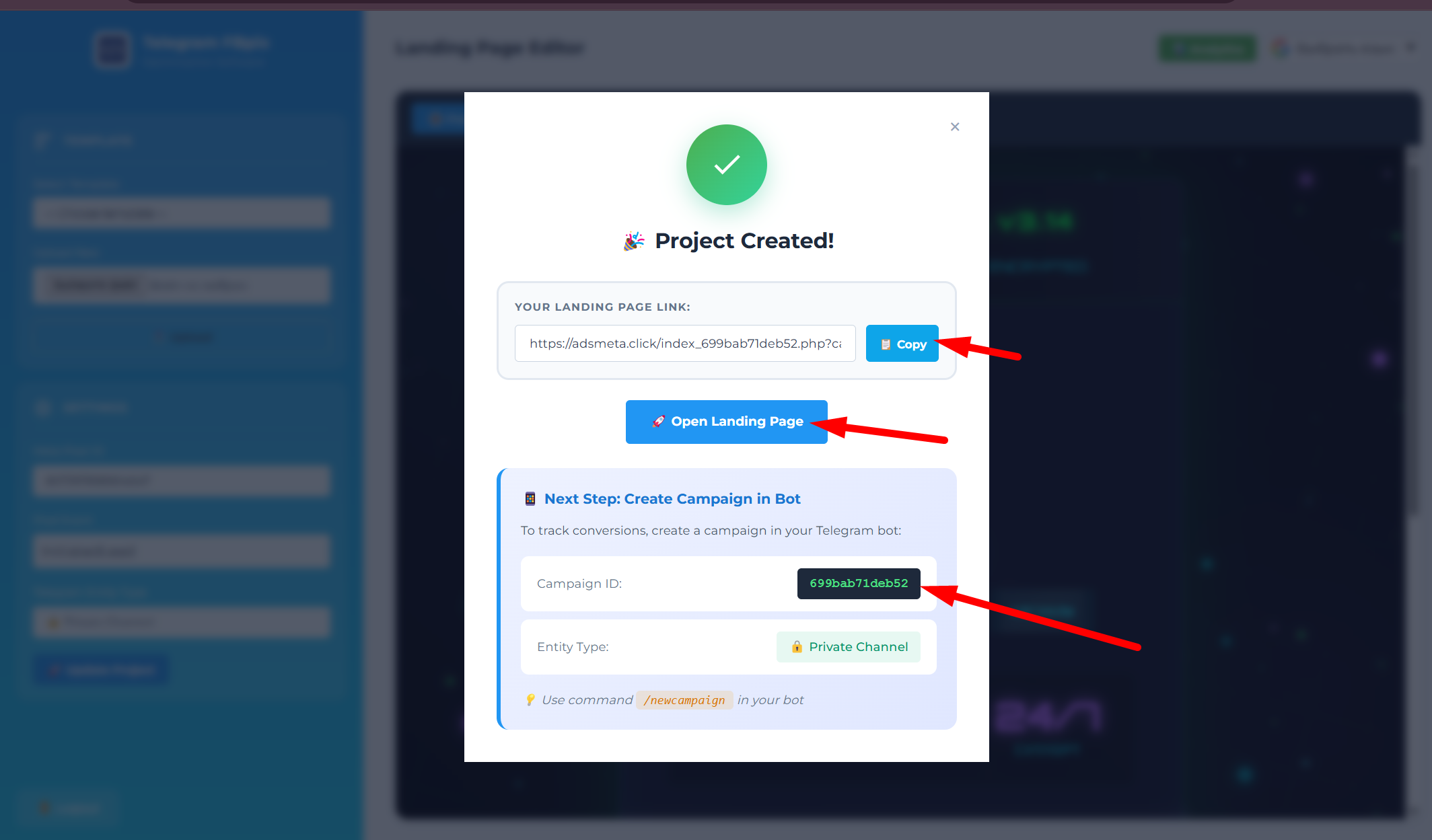 ### Step 3. Setting up a campaign in a Telegram bot
You open your main Telegram bot (not the one you trade with, but a service bot for settings).
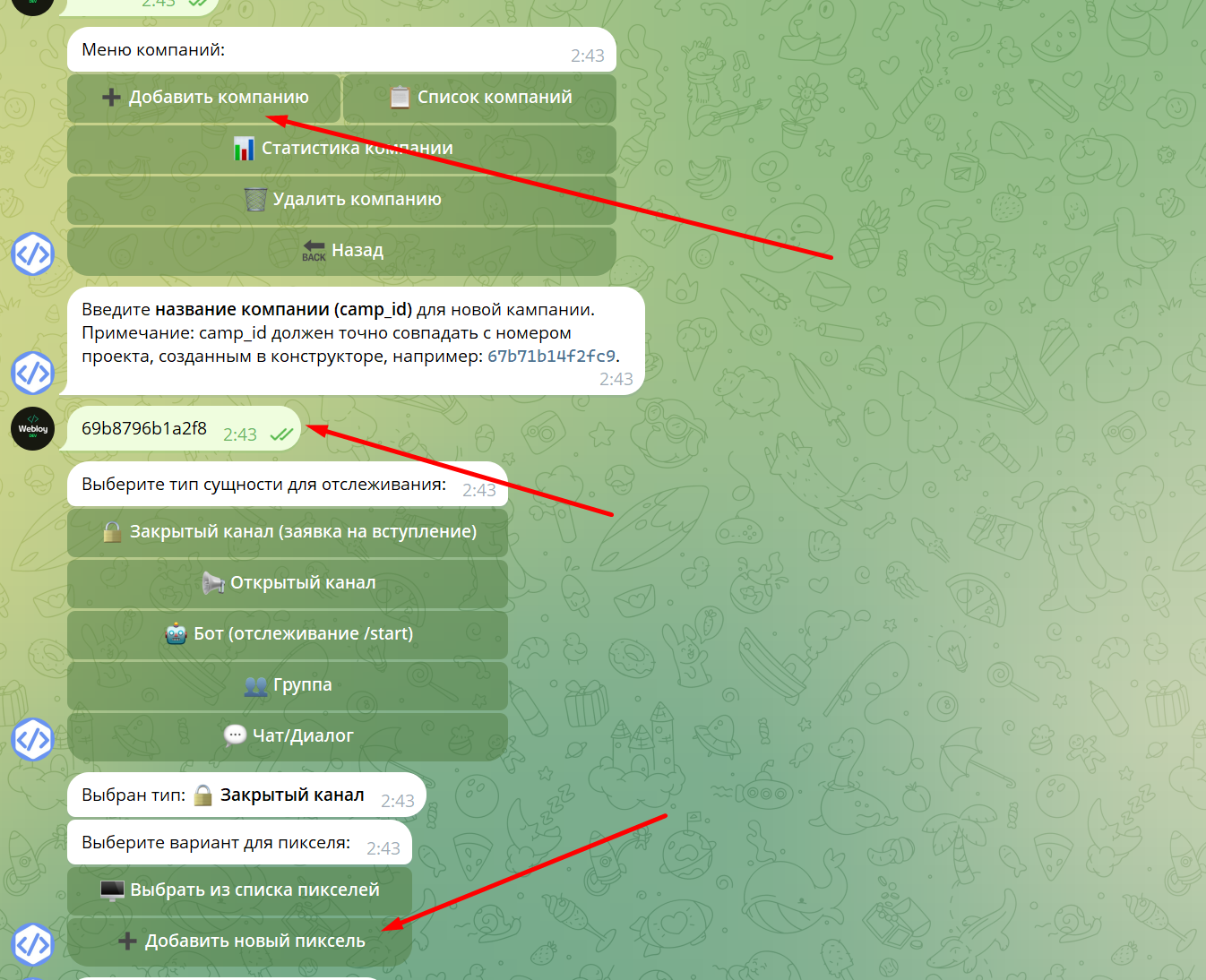
Go to the “Companies” menu and create a new one.
Choose what you are launching: a channel (open or closed), a bot or a group.
Insert your channel ID or bot token.
Specify the Pixel ID and Access Token from your Facebook advertising account.
You receive a tracking link.
You paste this link into the button of your landing page (created in Step 2).
Step 4. Launch and test
Open the landing page link and click the go button.
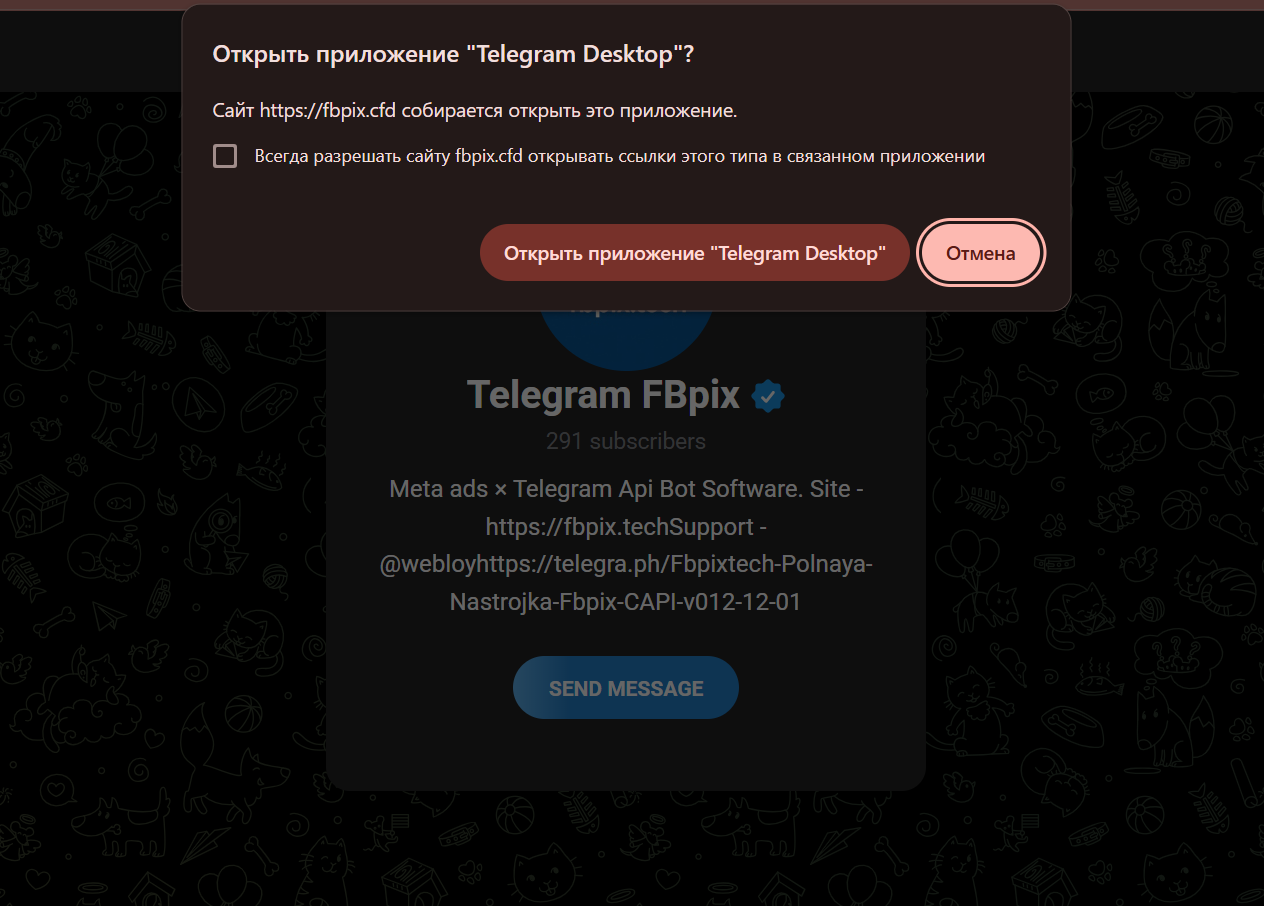
Check if a notification about a new lead has been received in the Telegram bot (administrator).
Go to the analytics panel (analytics.php) and make sure that the new click and request are displayed in the statistics.
If everything works, you can start traffic from Facebook.
Step 5. Work with clients (CRM)
When users start writing to your bot:
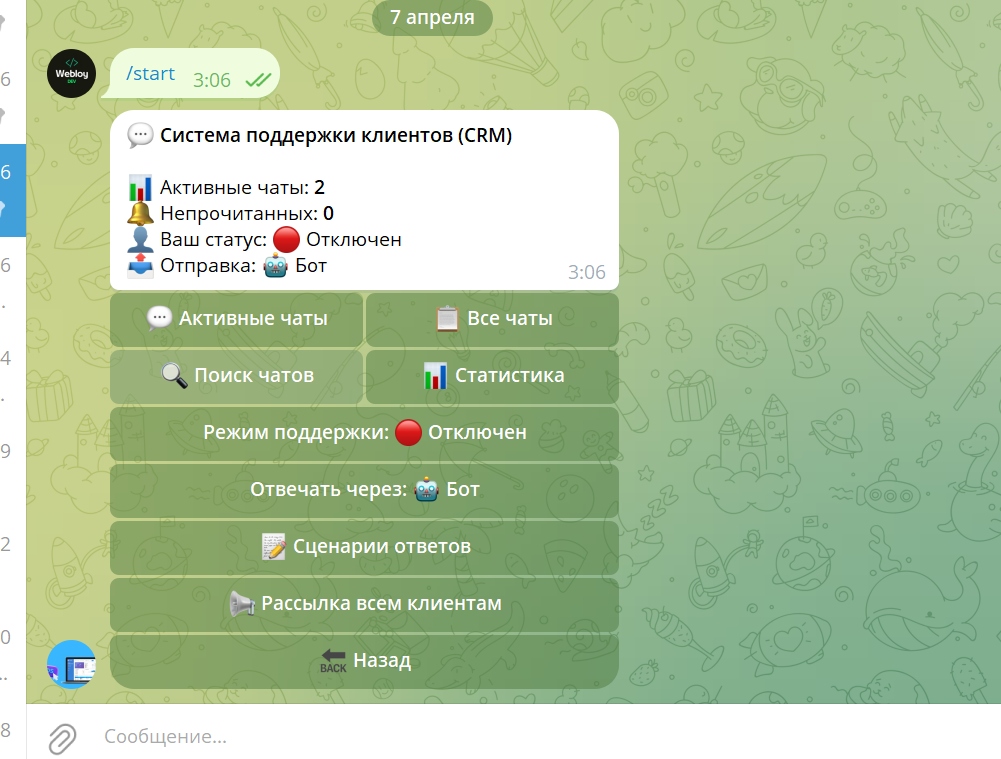
All conversations are automatically saved in the CRM section.
You can respond to clients directly from the panel interface or through a Telegram bot without switching between windows.
How to view statistics?
All basic analytics are located in the web panel. You can see:
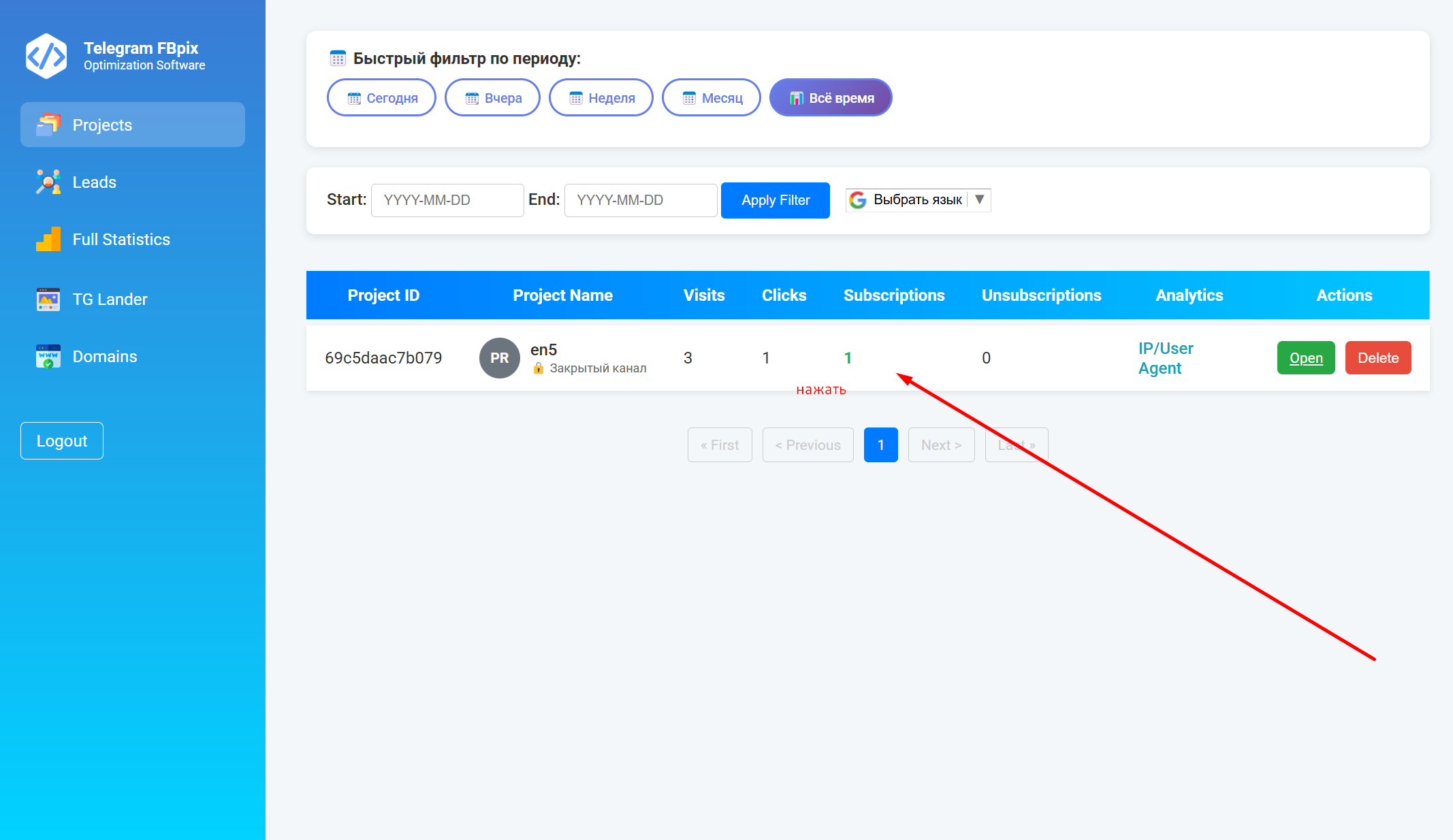
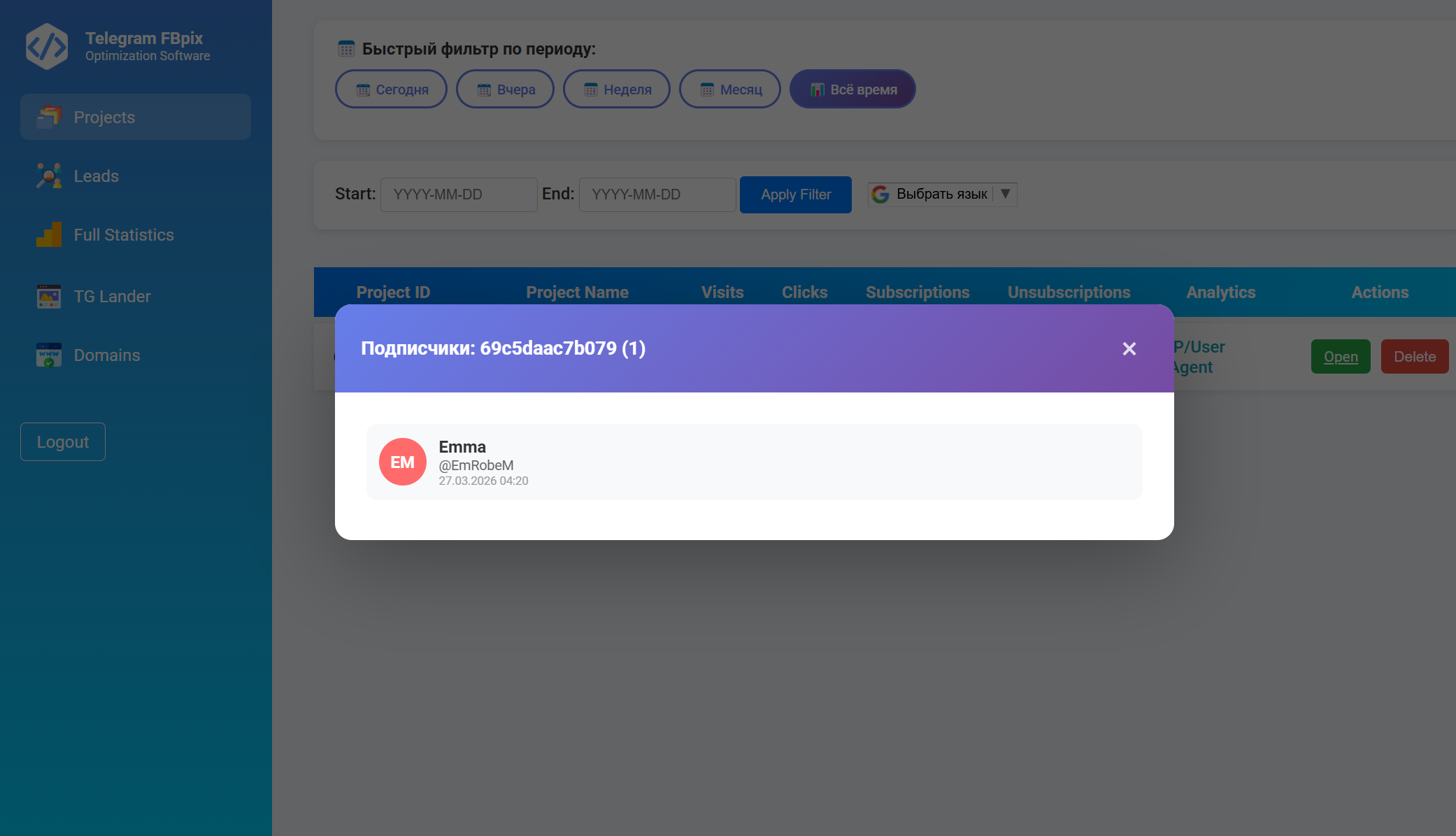
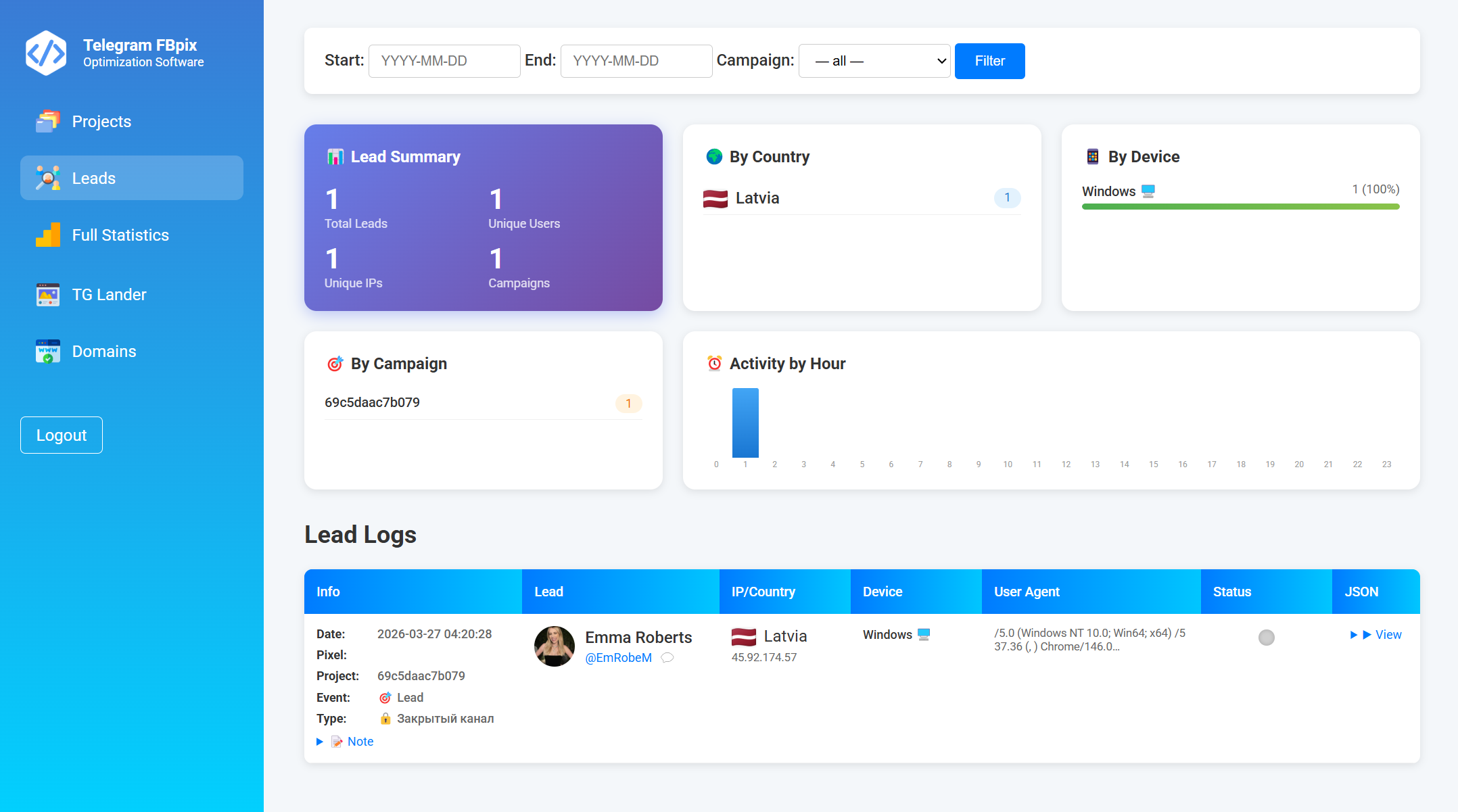
By project: How many clicks there were and how many subscriptions (leads) for each landing page.
By date: Dynamics per day/week.
By type: Transitions, channel subscriptions, bot launches and chat messages are shown separately.
Important points and tips
The key concept is camp_id: This is a unique identifier for your advertising campaign. It connects the landing page, Telegram bot settings and statistics. If you lose connection, statistics will not be collected.
Facebook Pixel (CAPI): The most important feature. Without it, Facebook won't see that people are signing up and won't be able to learn from your conversions. Make sure you have the correct Pixel in your campaign settings.
Entity types (what are you promoting):
If it's a private channel (on request), the Facebook event will be posted as "Lead".
If this is an open channel - as “Subscribe”.
If this is a bot - as “StartTrial” (Start of the trial period).
This is important for proper advertising optimization.
What to do if something goes wrong?
Events do not go to Facebook: Check in the Telegram bot campaign settings whether the Pixel ID and Access Token are entered correctly.
The link on the landing page does not work: Check that the correct link (received from the bot) is specified in the project settings in the web panel.
The bot is not responding: Check if the main service is running on the server.
No statistics: Make sure that you follow the generated tracking link, and not just paste a direct link to the bot.
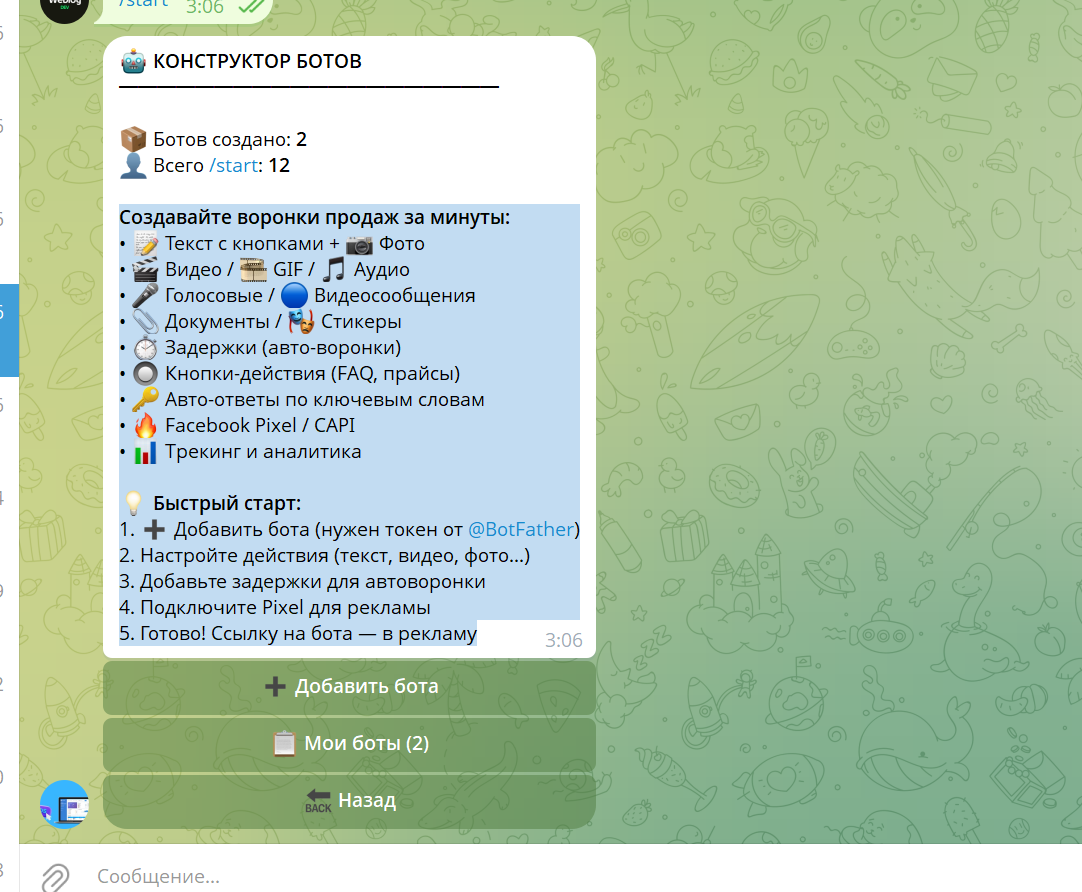
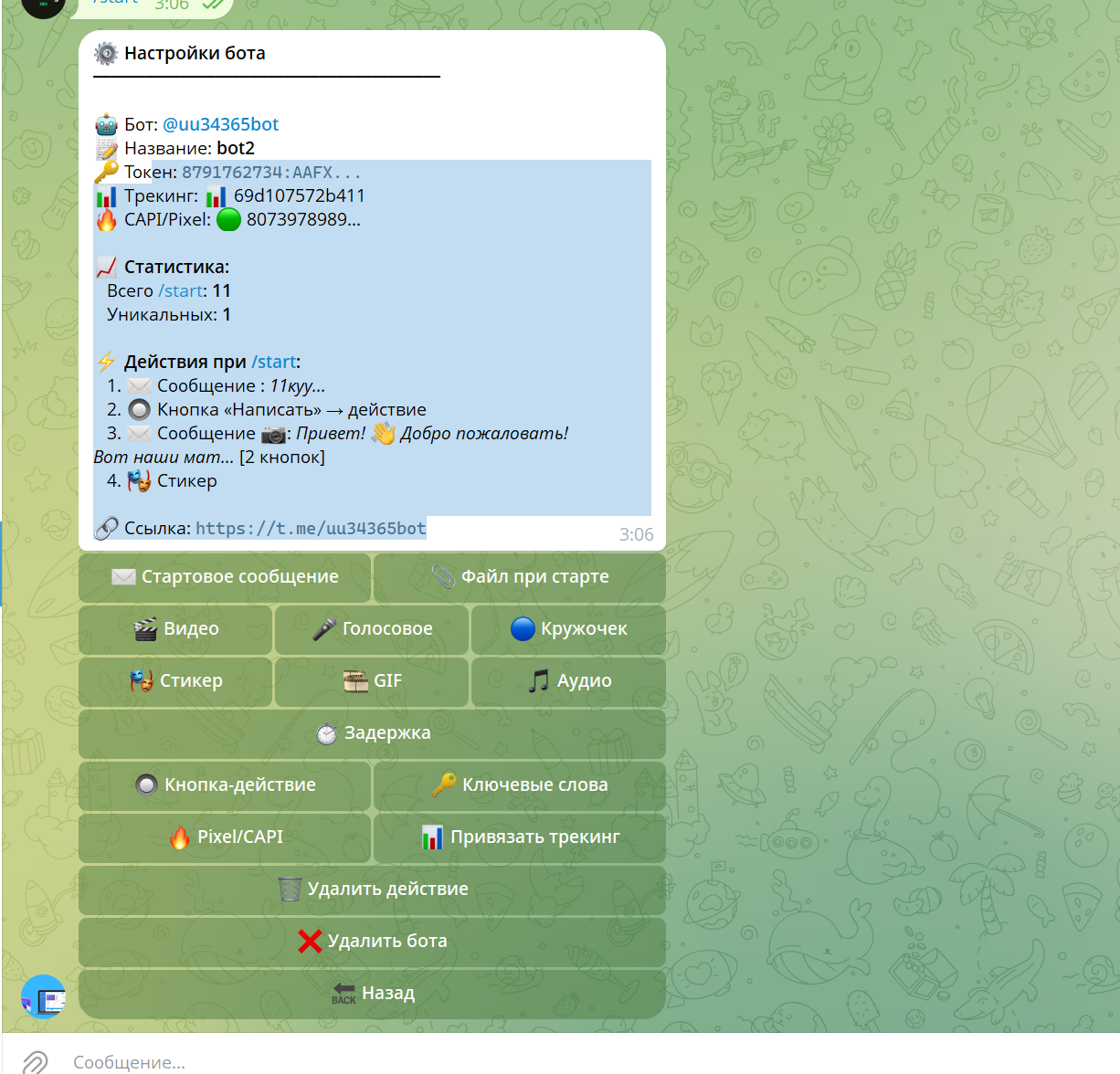
Launching a Funnel on Telegam bots.
BOT CONSTRUCTOR💡 Quick start:
1. ➕ Add a bot (you need a token from @BotFather)
2. Set up actions (text, video, photo...)
3. Add delays for the funnel
4. Connect Pixel for advertising
5. Done! Link to the bot - in advertising
Summary
This service allows you to fully automate the Facebook Ads - Telegram link. You don't need to hire a programmer to set up tracking and sending events. The whole setup comes down to:
Creating a page in the web panel.
Setting up a campaign in a Telegram bot.
Inserting the received link into your advertising account.
After launch, all lead statistics will be available both in your Facebook advertising account (thanks to CAPI) and in your personal analytics panel.
What's next?
How to subscribe via Telegram—step-by-step, what to send and how it all works.
Creation of a Company for Closed, Open Channels and Telegram Groups
Setting up a Company for Chats, Dialogues of Telegram accounts.
CAPI PIXEL META setup.
How to Test CAPI PIXEL?
How to add your Landing to the system?
How to Set up Auto Message for Channels?
How to add a domain to the system?
How to Edit Text, Pictures on Landing Pages?
How to Set Up Auto Message for Channels?
How to distribute access to a team?
How to add your Landing to the system?