


How to set up a landing page, company and analytics
We have a bot and three types of panels:
- Landing page builder
- Project analytics
- Telegram Bot
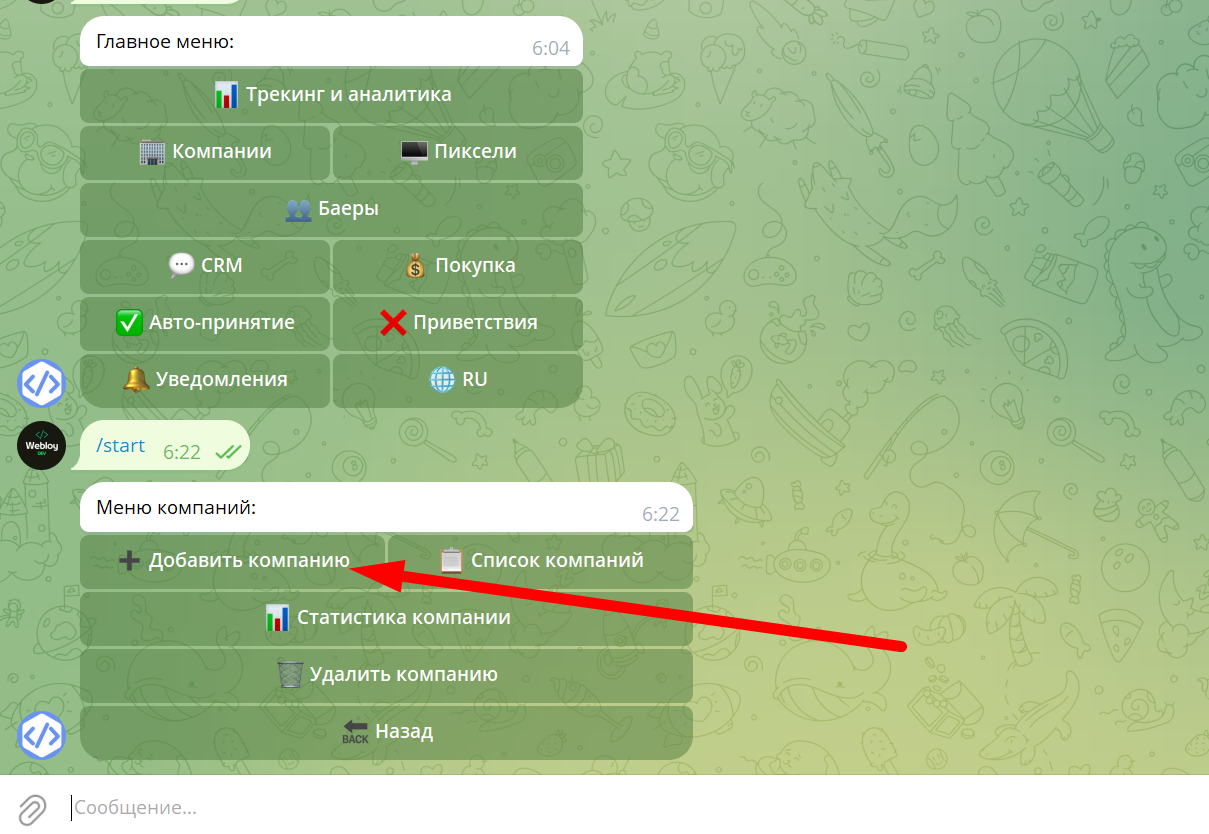
After logging in, you will see the start panel. First you need to create a landing page and get a link. Let's look at the process step by step.
1. Creating a landing page
Follow the link:
https://вашдомен/prelander.php
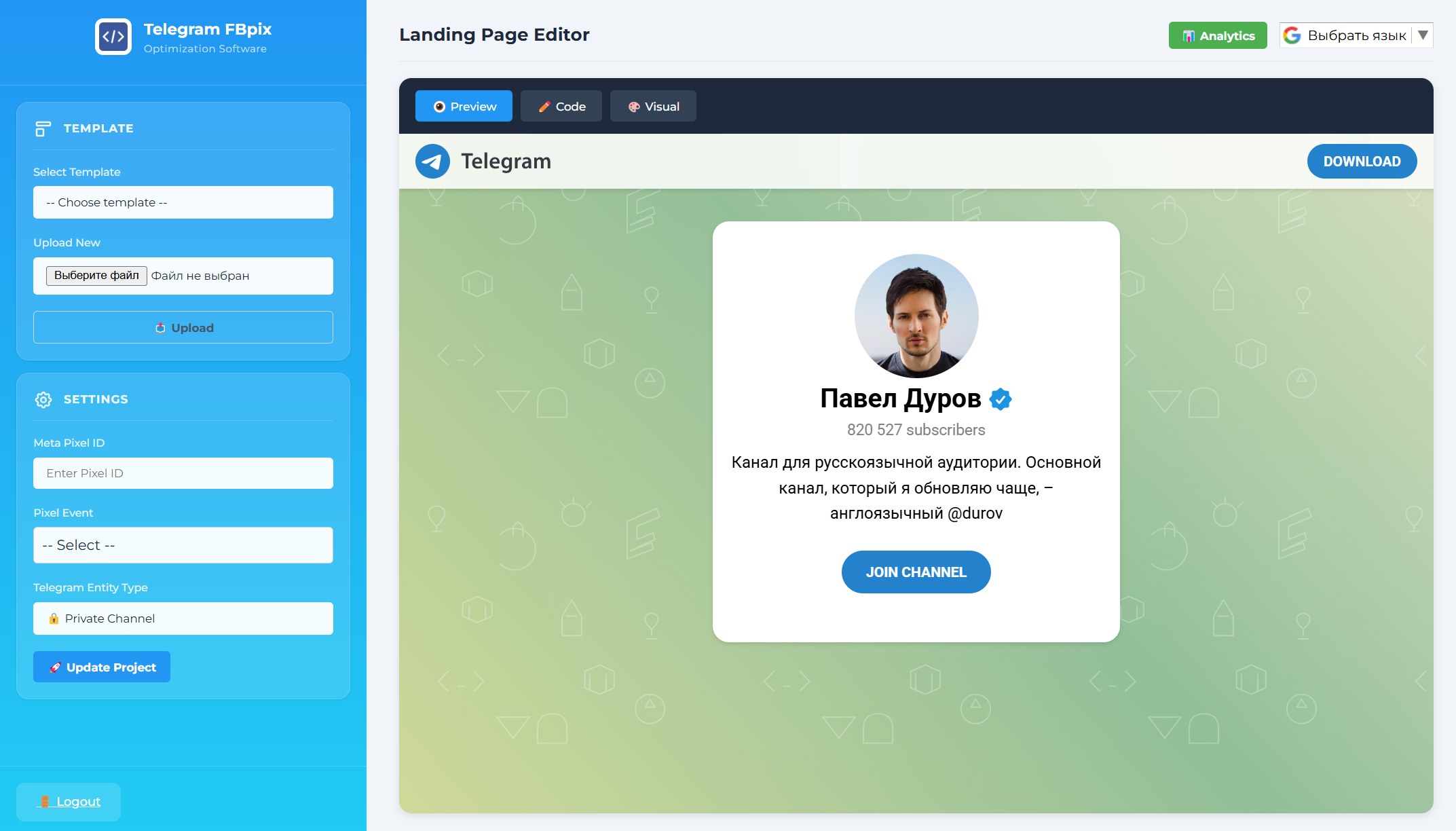
Choose a suitable template.
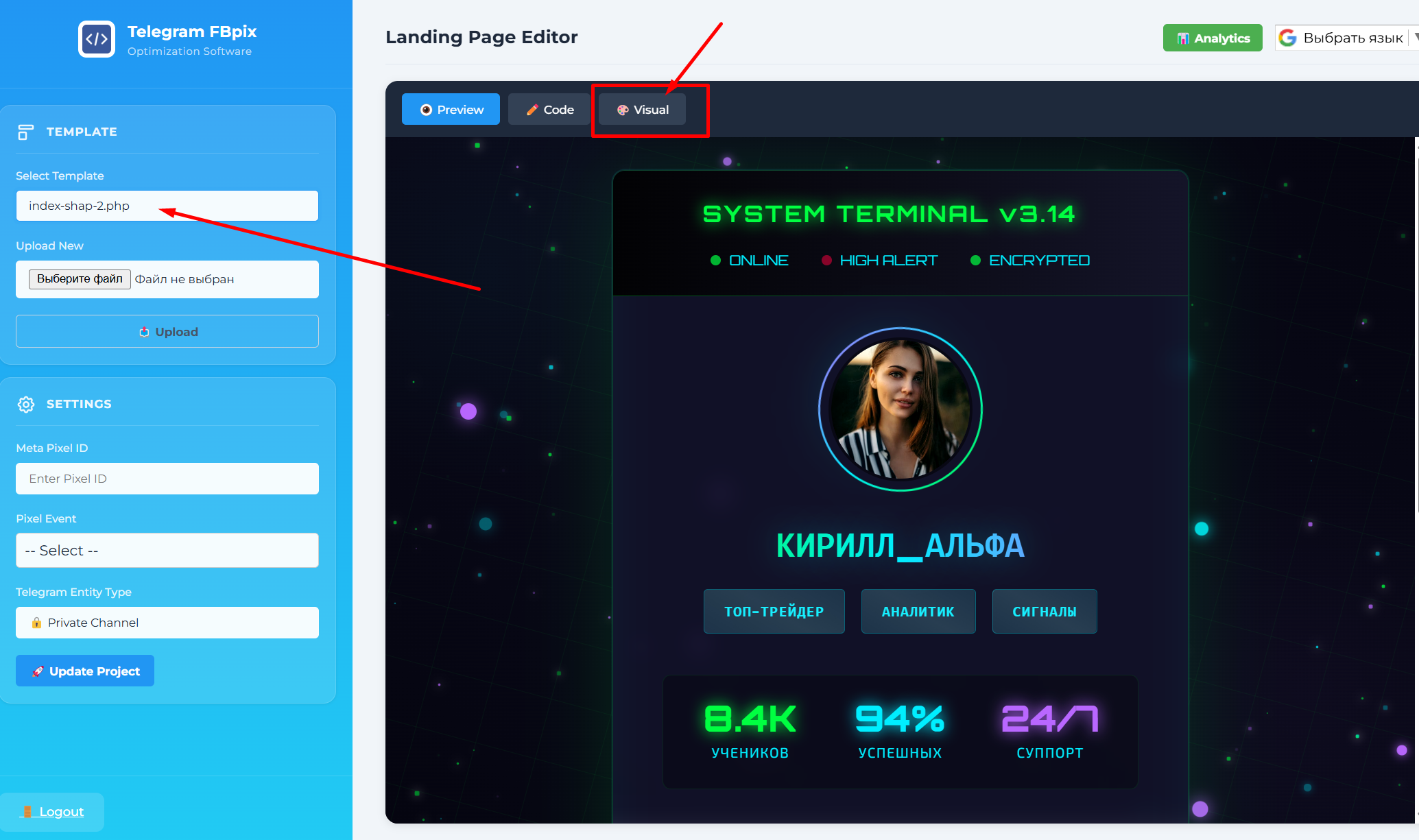
Turn on the visual landing page editor and edit:
- text
- meta tags
- images
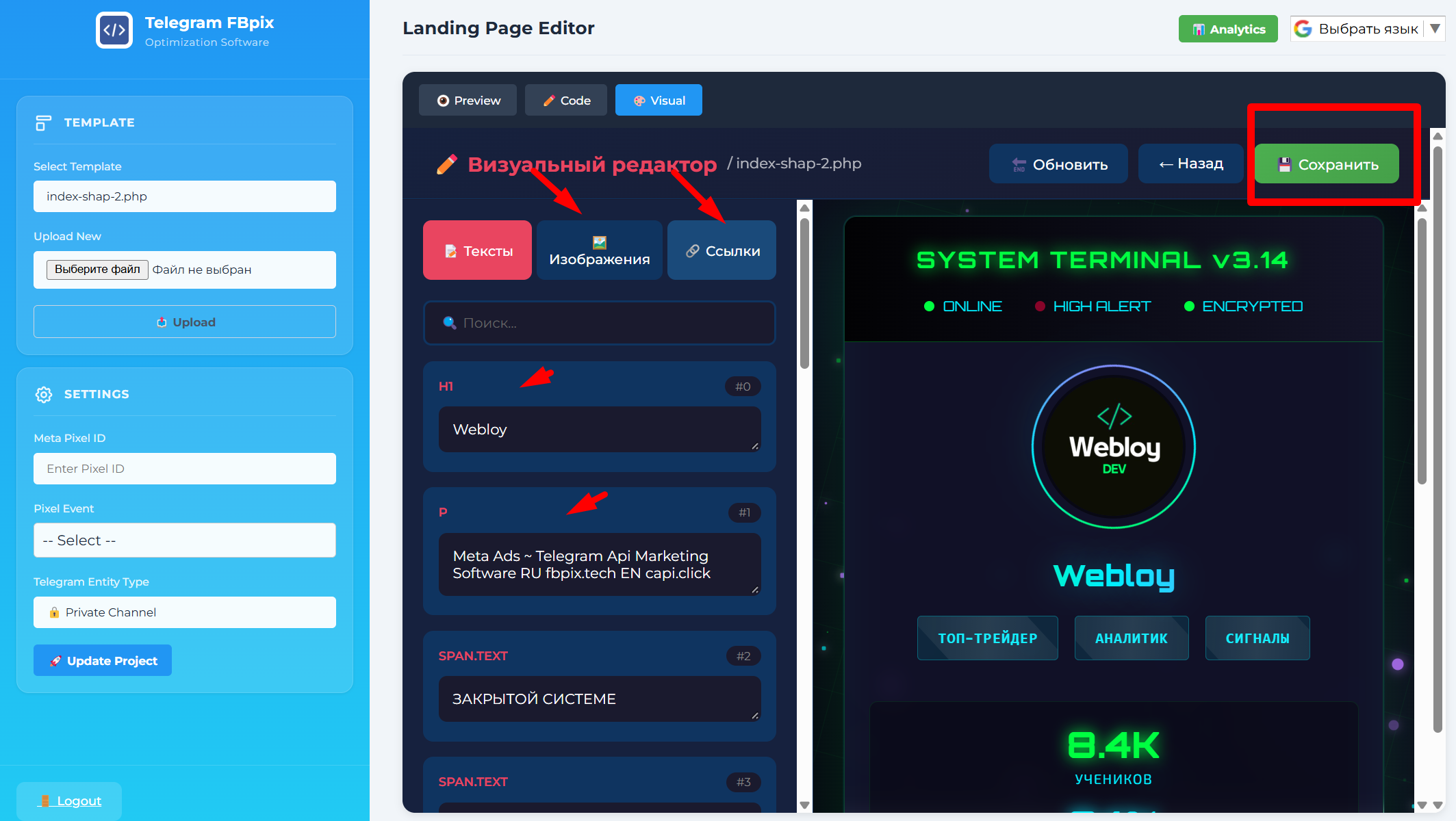
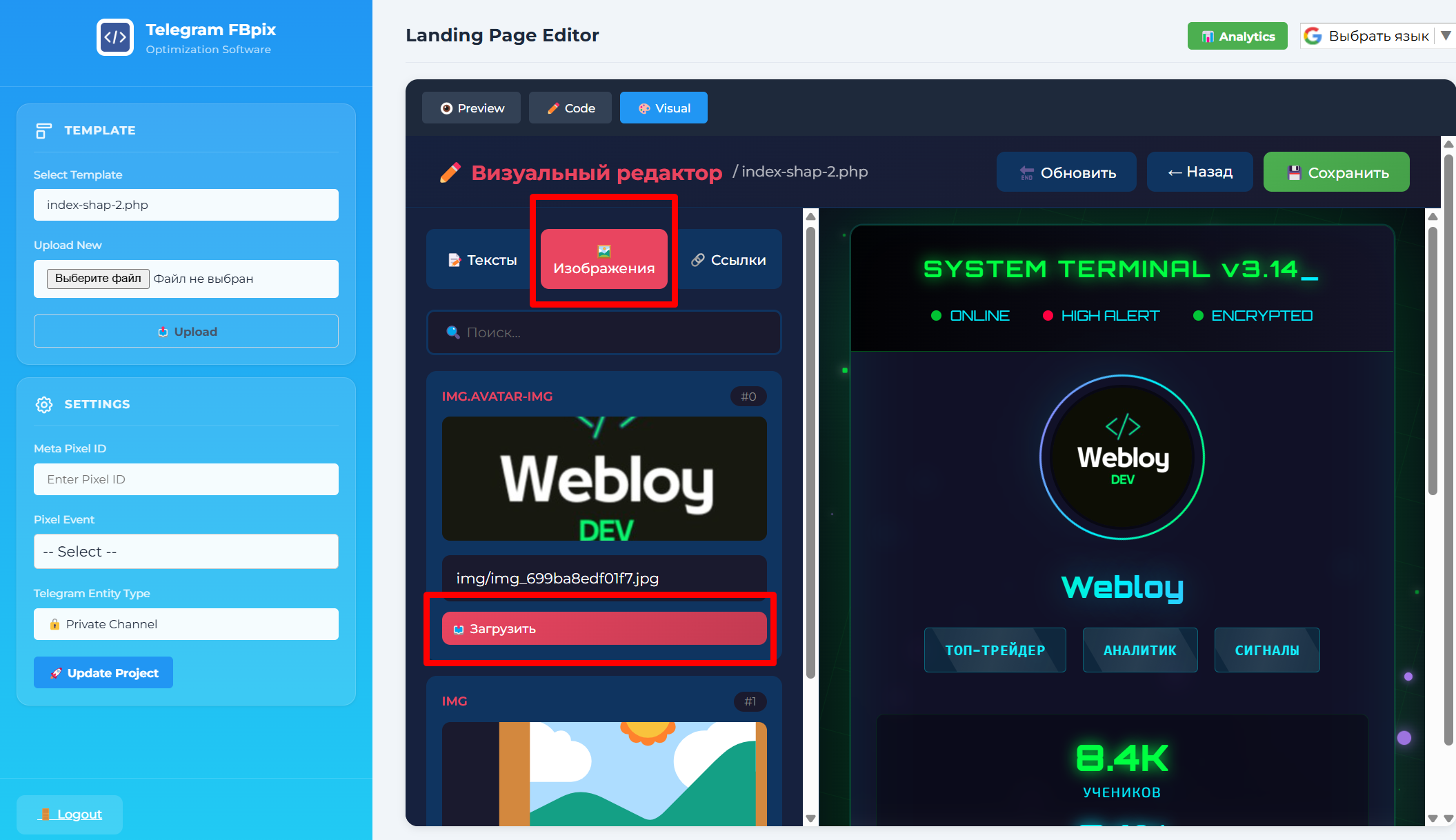
If some element cannot be edited visually, use a code editor. To do this, press
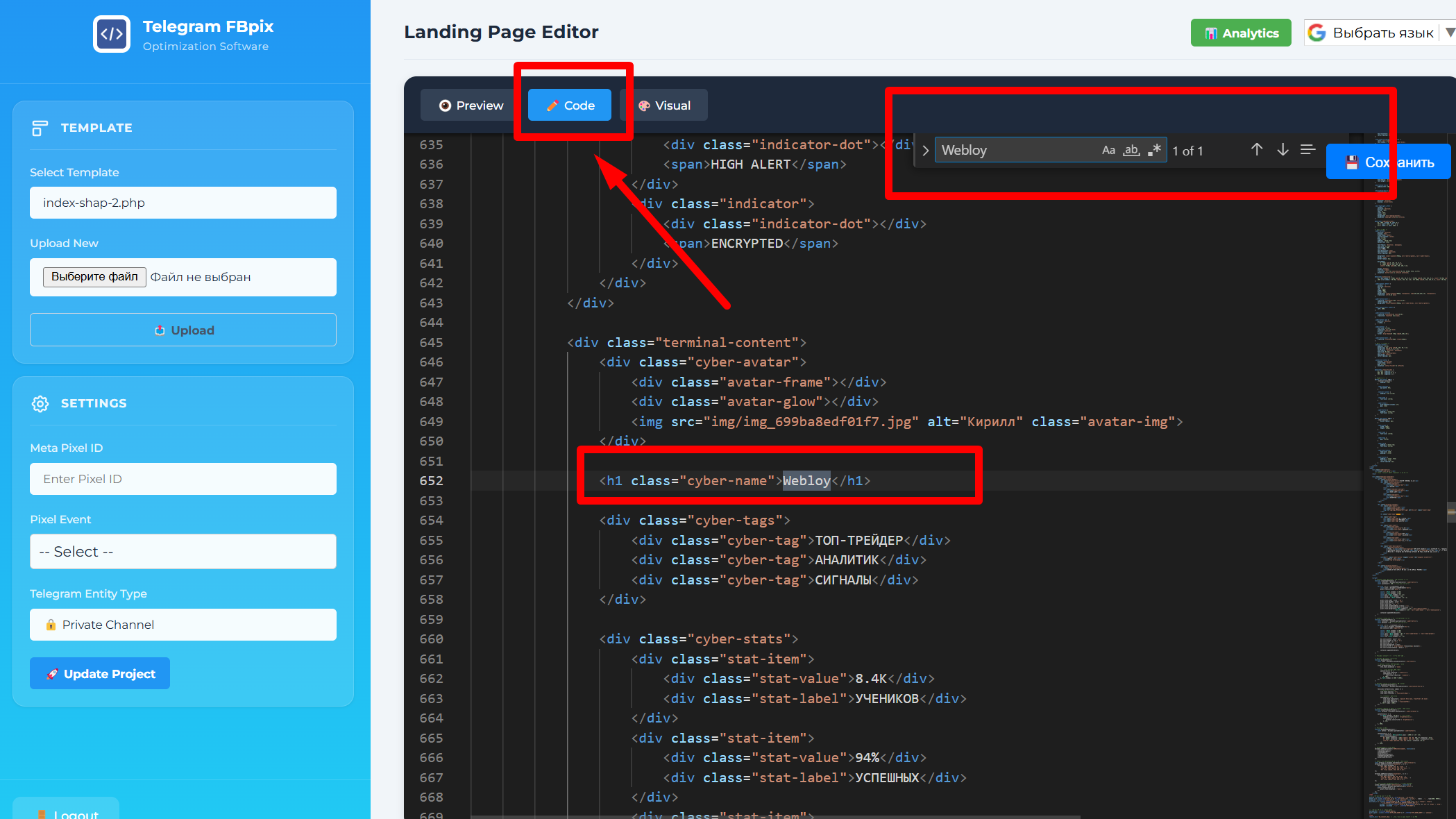
Code, move the cursor over the desired section of the code, then press Ctrl + F and find the element by name. For example, you can search for webloy.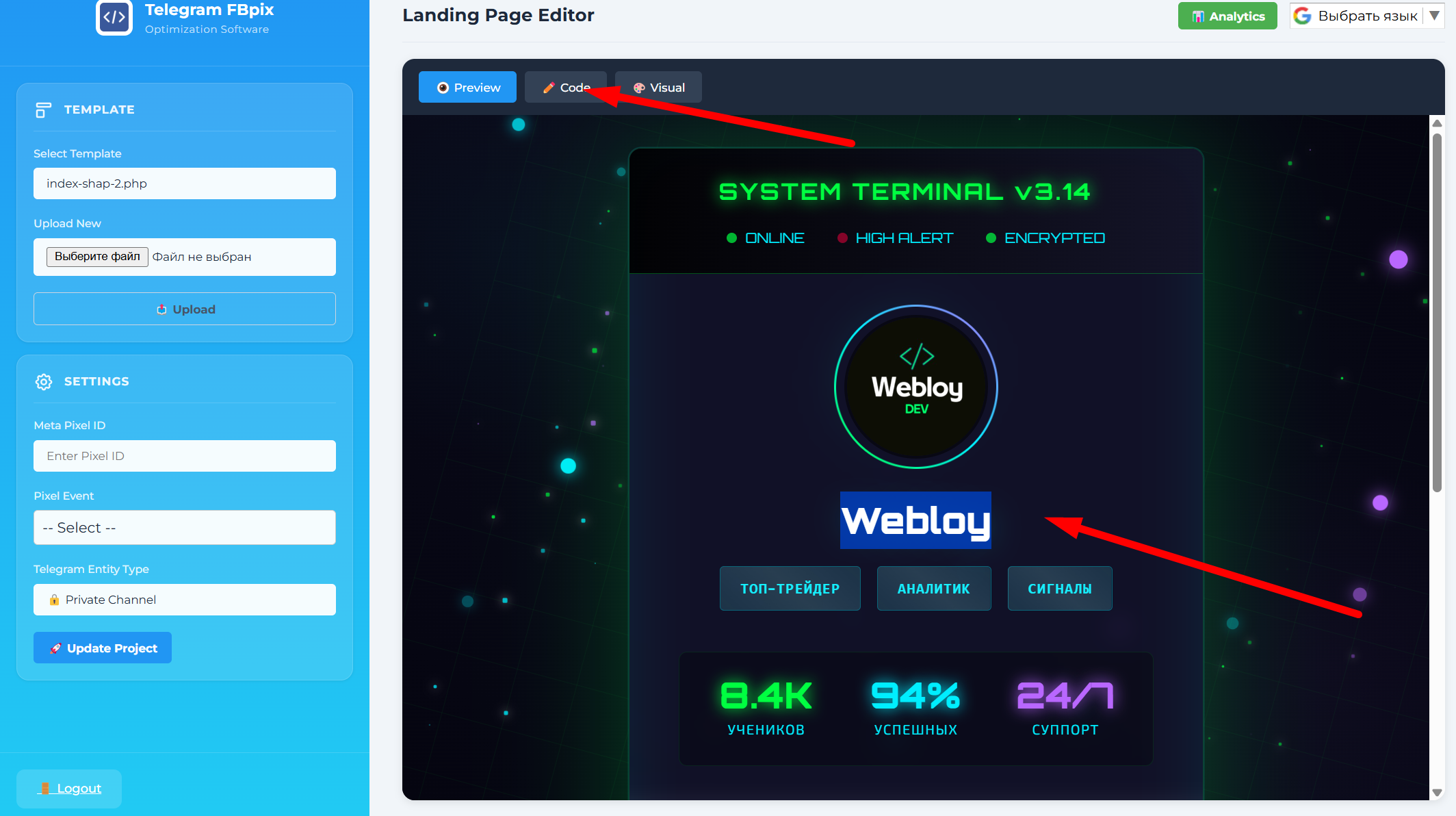
This way you can quickly find and edit the blocks you need. It is also recommended to edit the SEO meta tags.
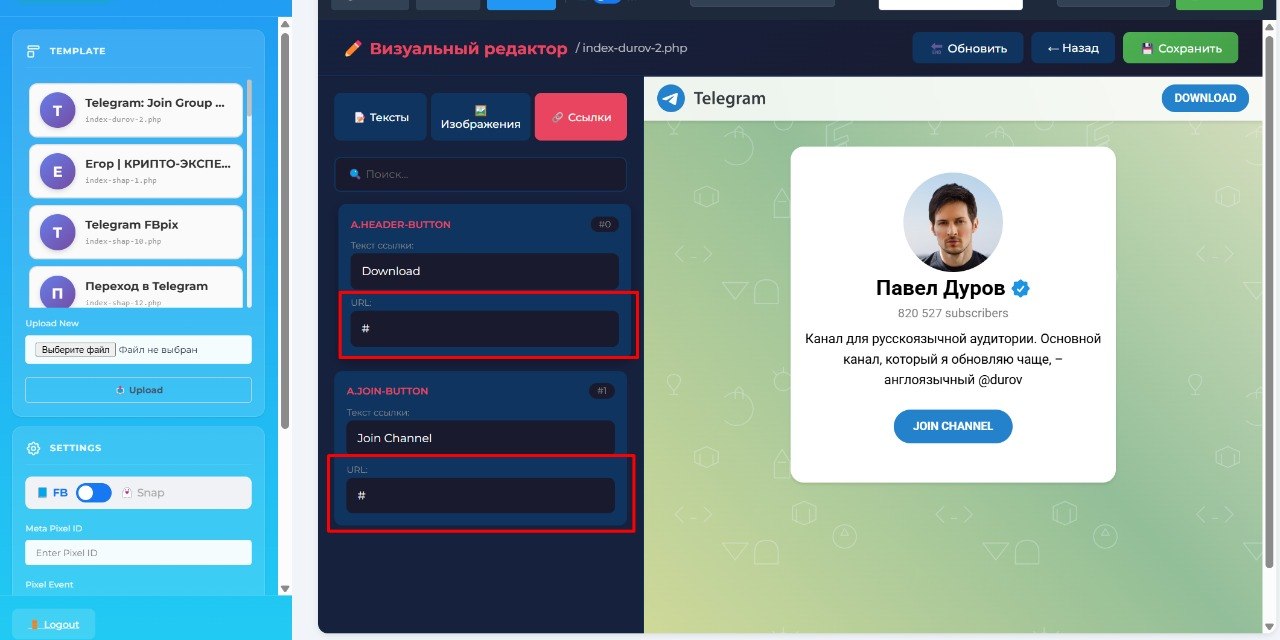
Do not put links on the landing page! should be #. The system itself will open the button via API .
2. Create an advertising link
Fill in the
CAPI PIXEL number that you created according to the instructions:https://telegra.ph/Nastrojka-CAPI-Pikselya-META-Fbpix-CAPI-v012-12-16
For the pixel event, select only
InitiatedLead. This is a pixel specifically for landing, so it should have a different name from the others. The CAPI pixel will be registered in the Telegram bot.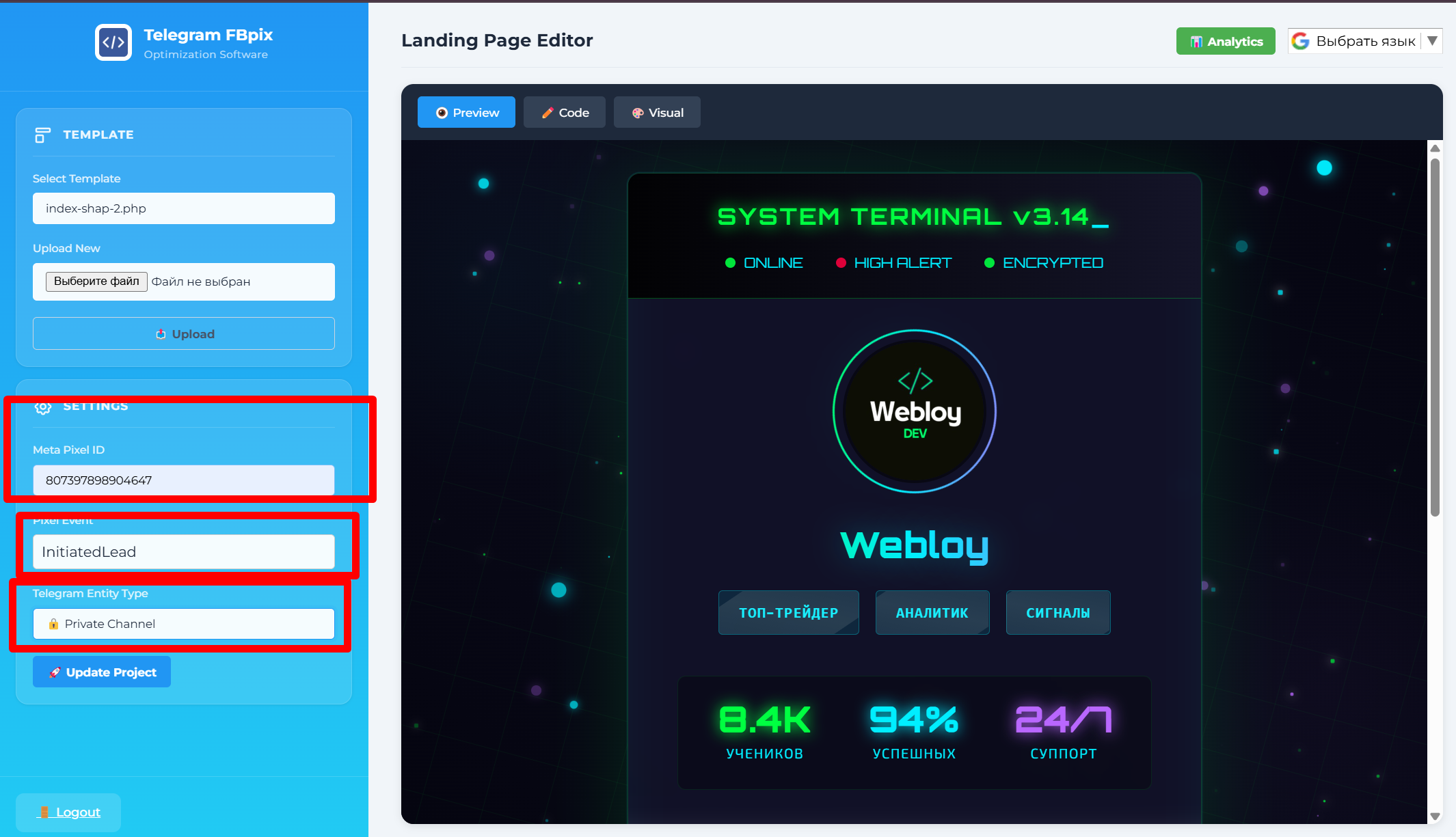
Click Update.
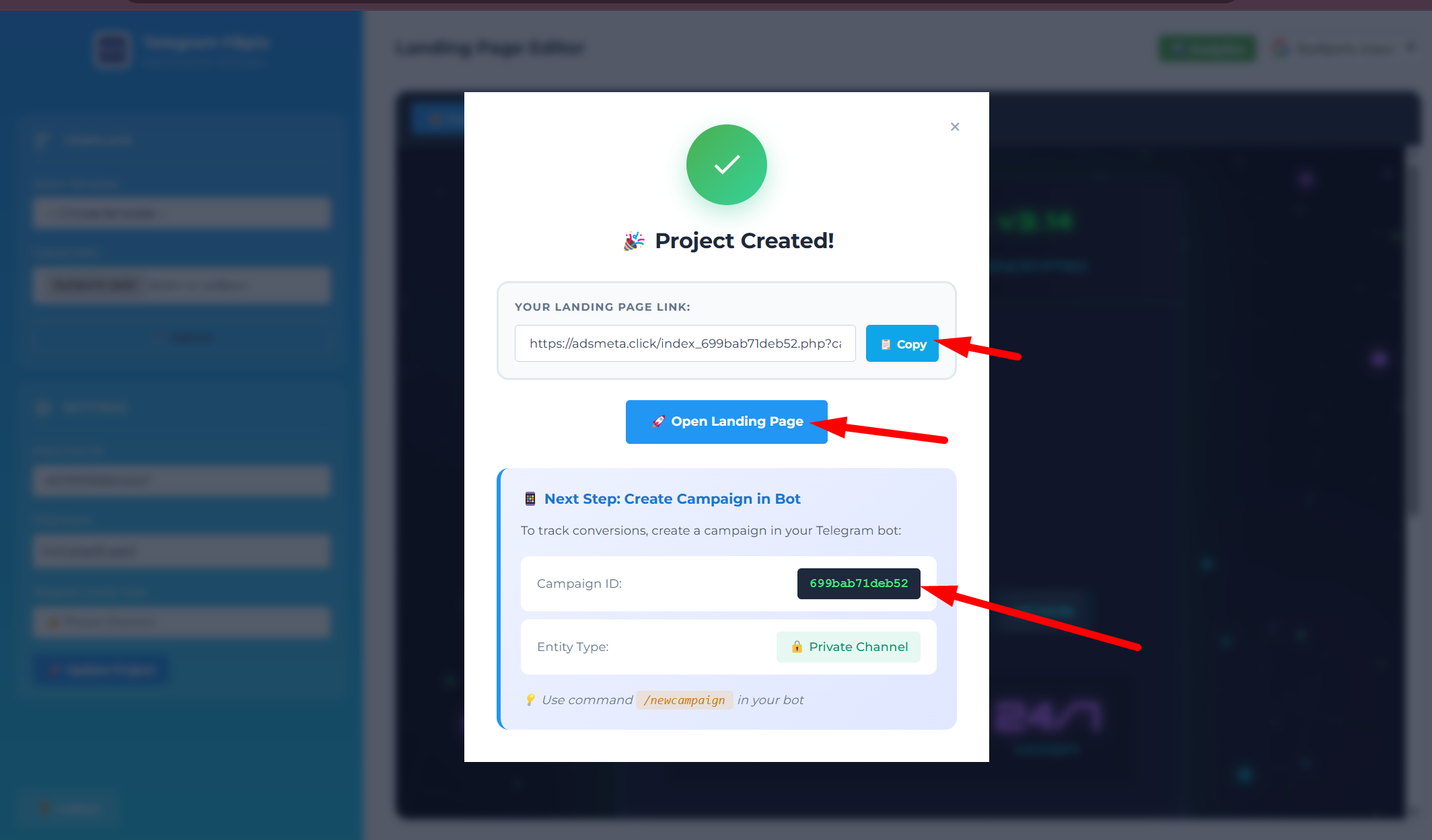
After that, open your link and copy the company's
ID. The screenshot shows an example: 699bab71deb52.3. Creating a company in a bot
Open the bot menu.

Create a new company.
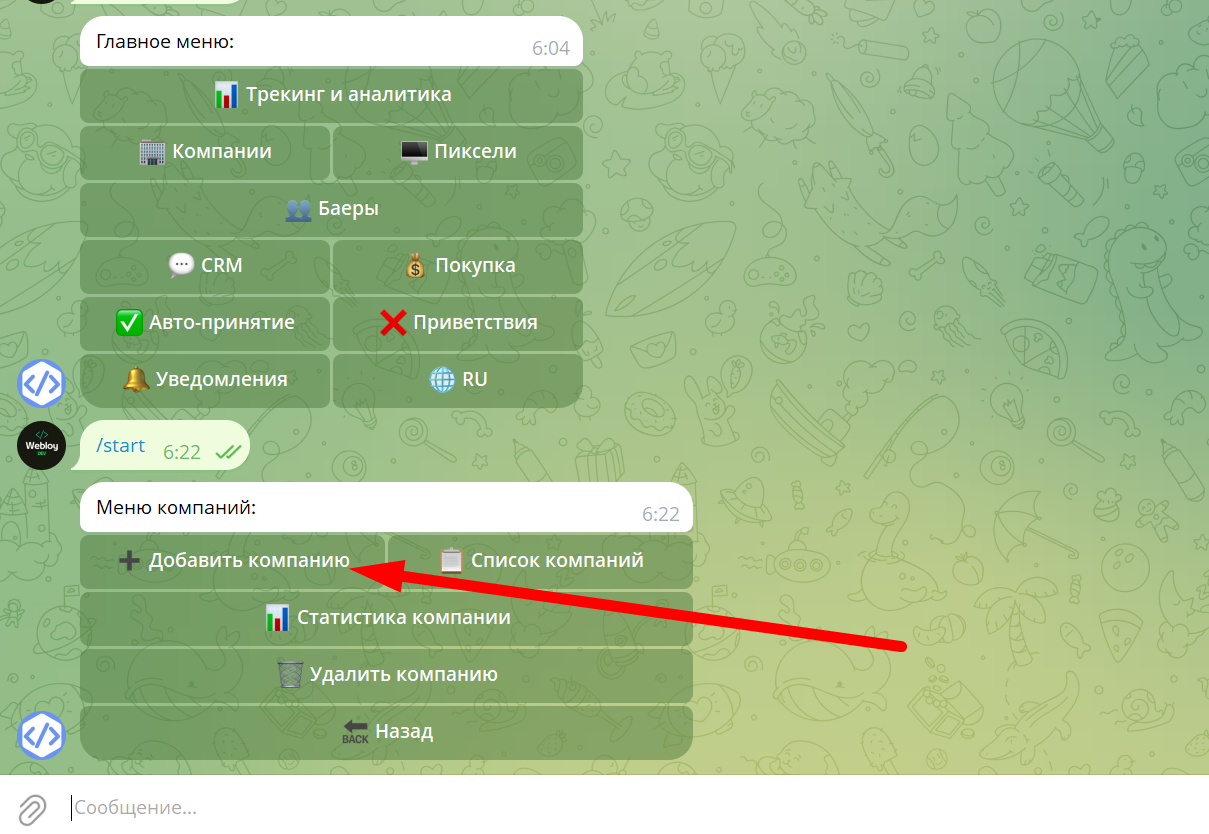
Enter
ID of the company from the builder where you just created the link.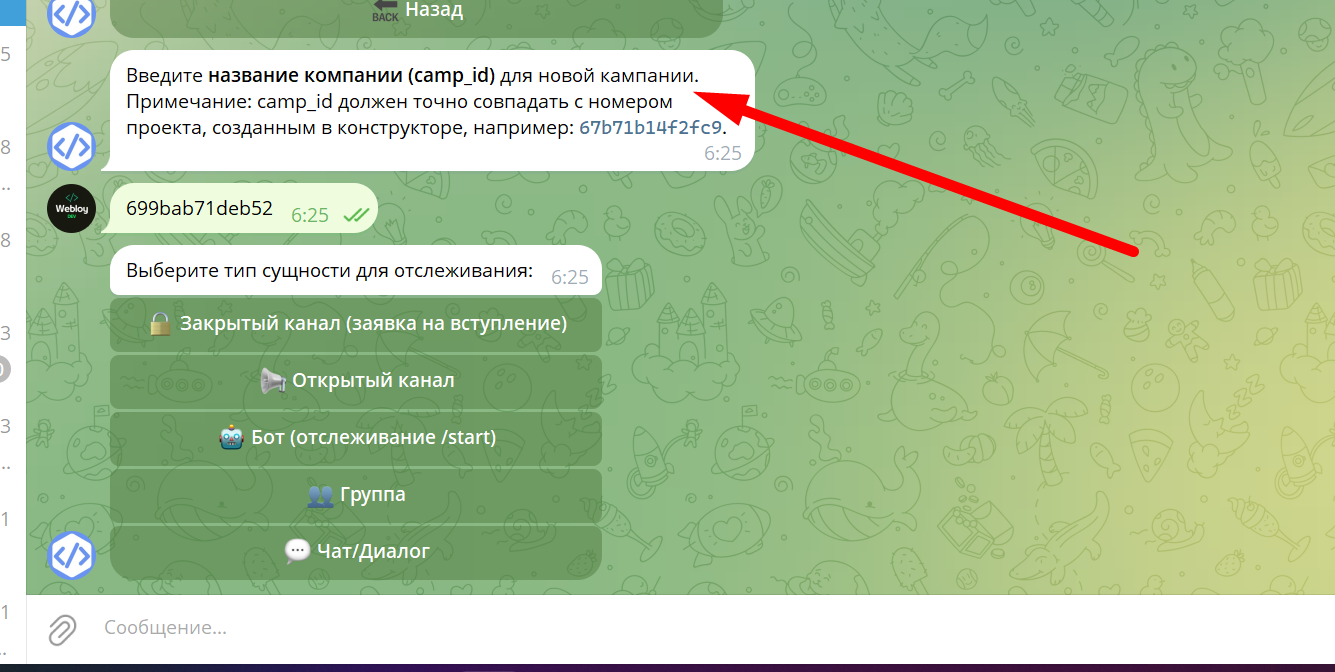
This
ID is taken specifically in the landing page builder.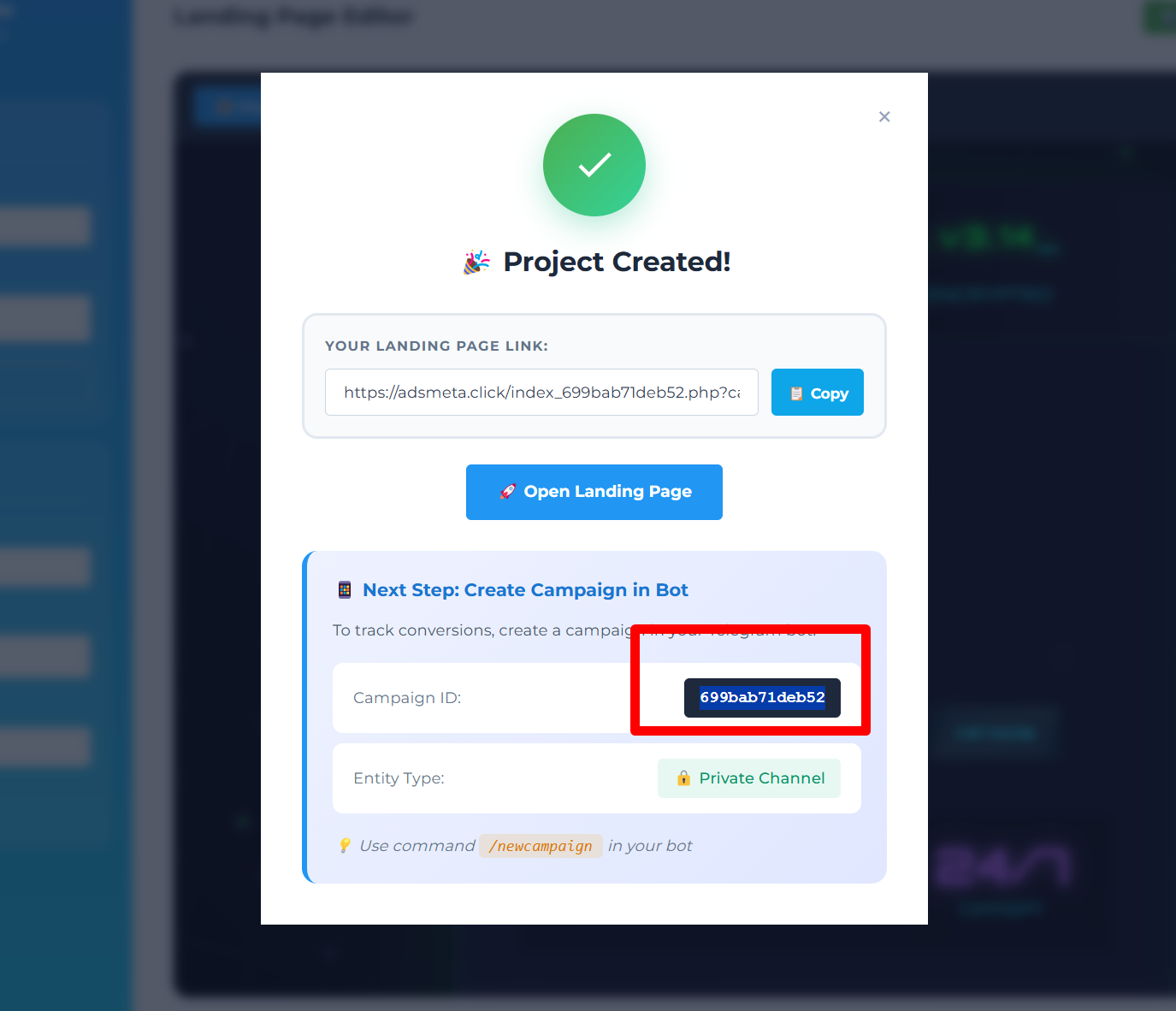
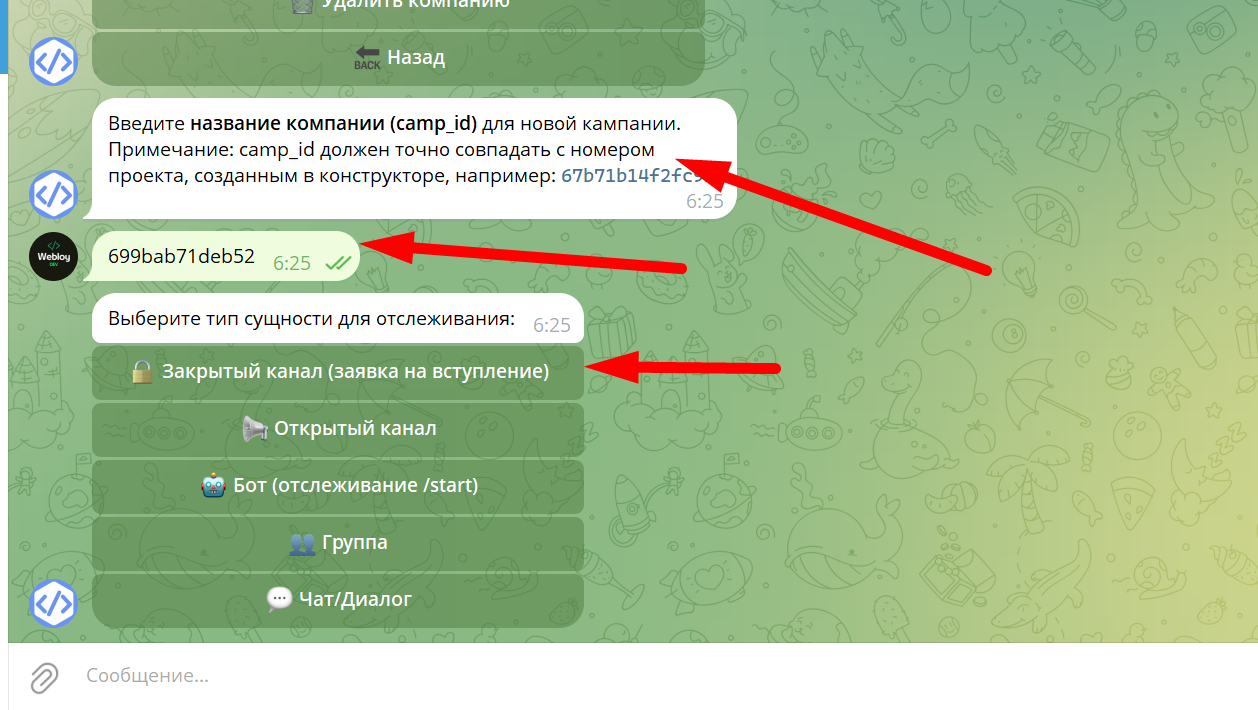
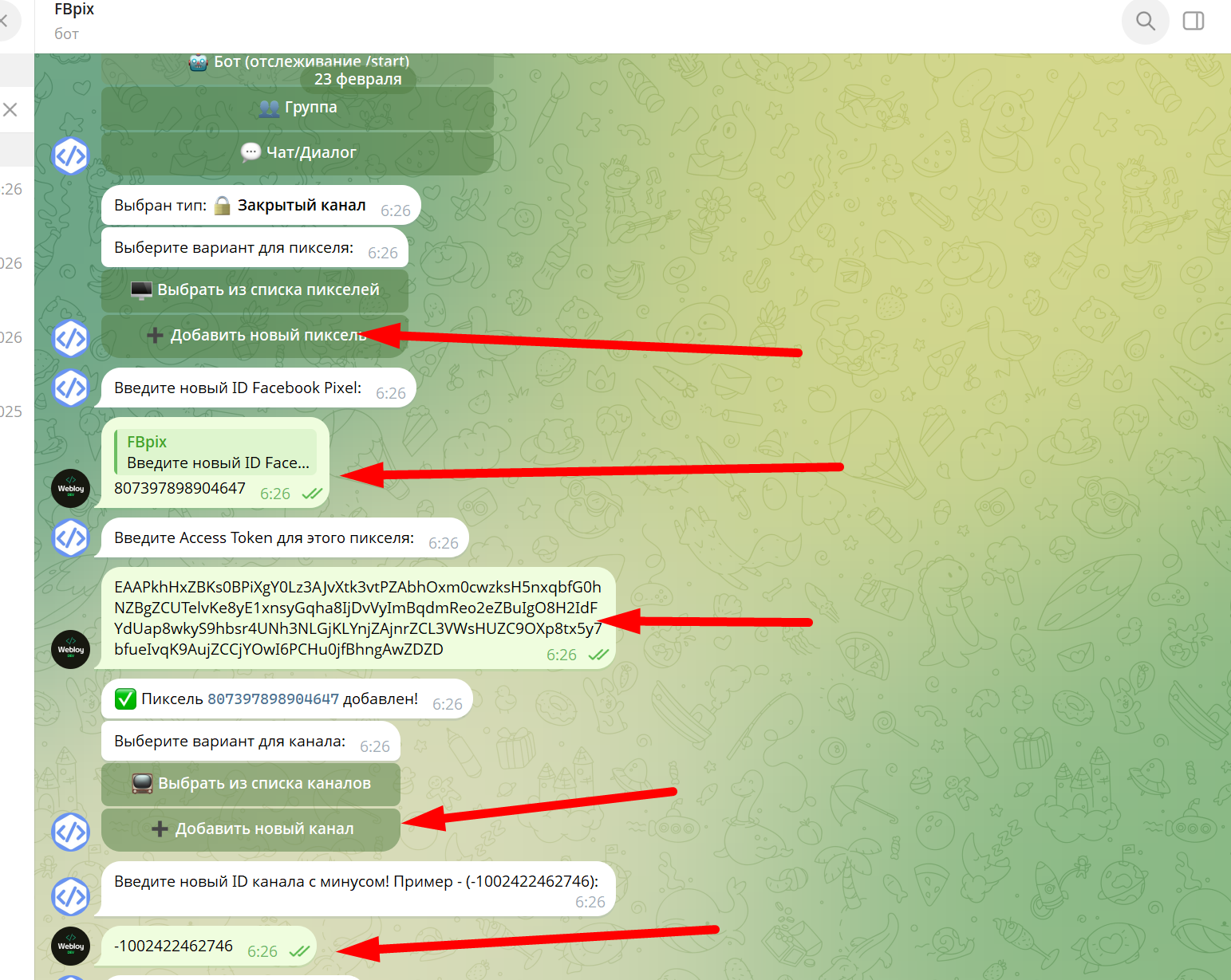
Now add a channel to the system depending on its type. Specify
ID and pixel.How to get channel and group IDs:
Instructions
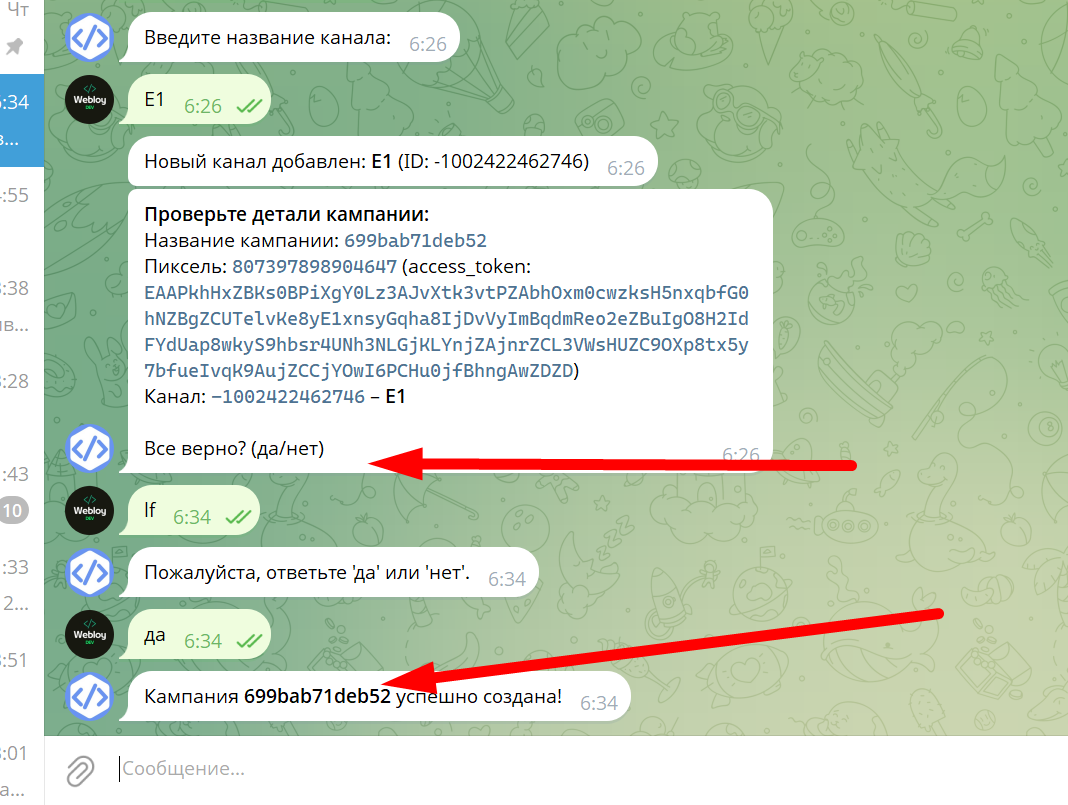
The landing page is now active.
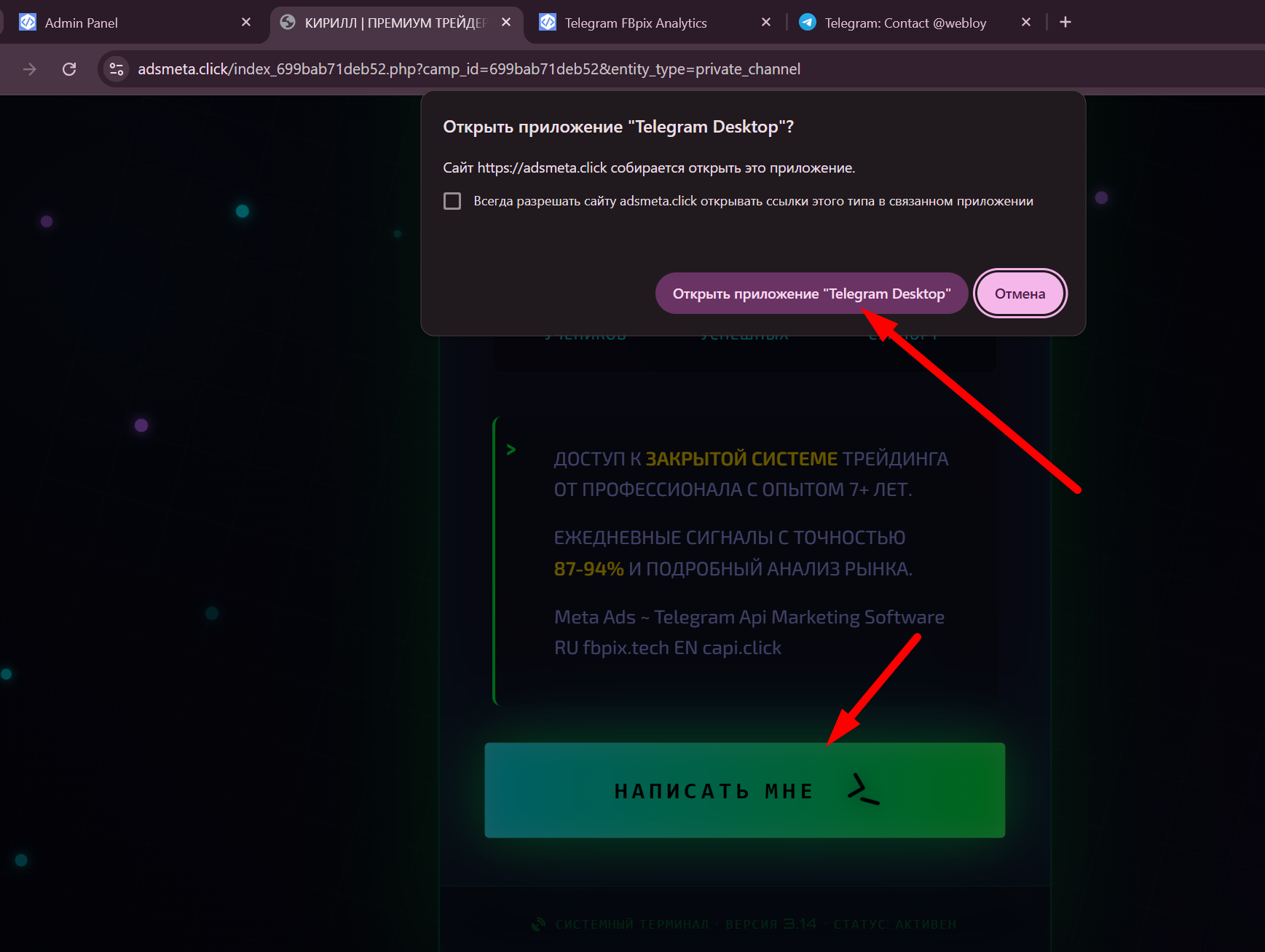
4. Which event to set in Ads Manager
After this, you can run advertising.
The pixel event depends on the type of Telegram object:
- Closed channels -
Lead
- Open channels -
Subscribe
- Start of chat -
Contact
- Groups -
CompleteRegistration
Important: there is no need to test events via
Events Manager. The system only makes a request with fbclid, so until the advertisement is running, the event will not be displayed.5. View projects and subscribers
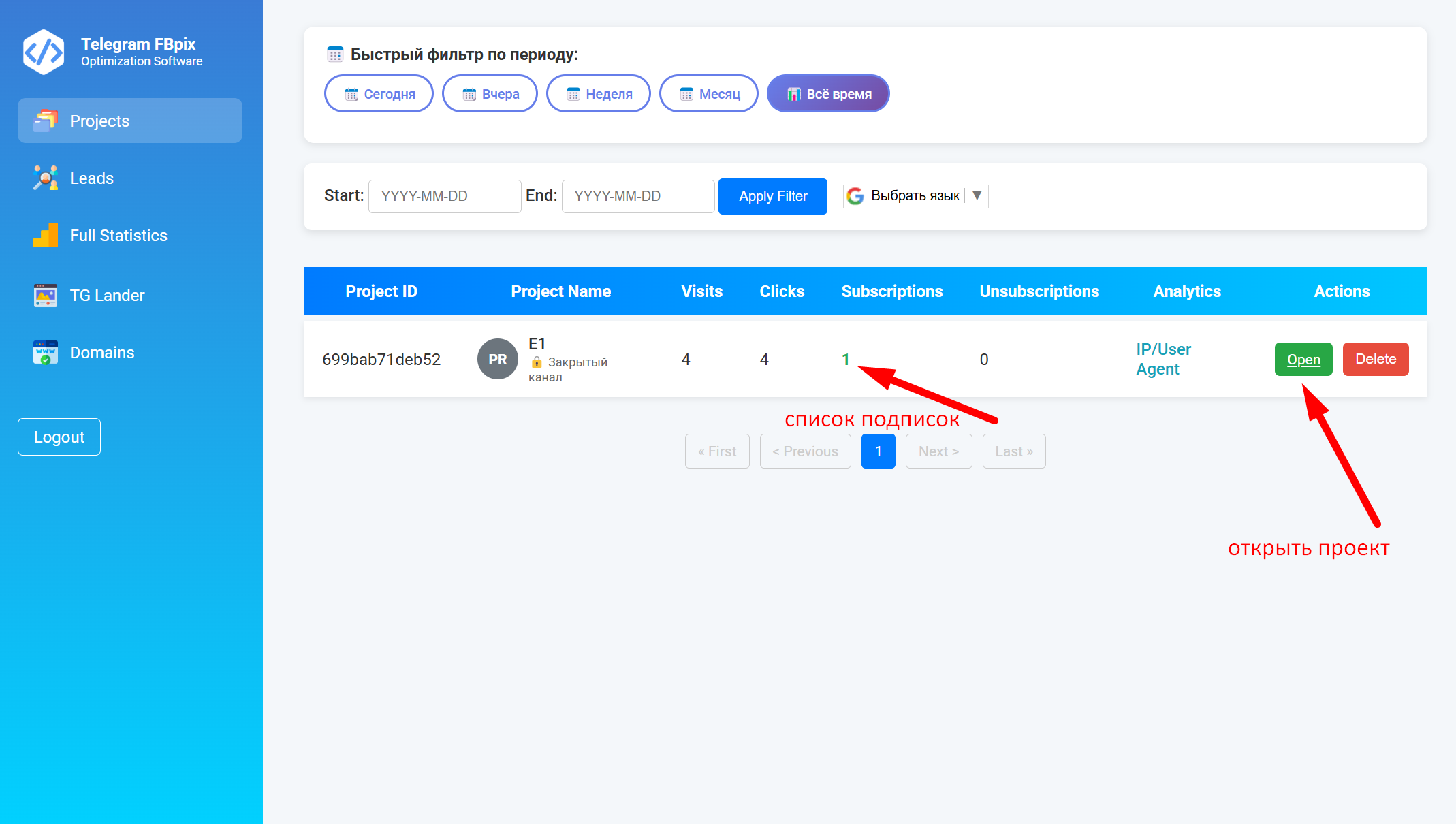
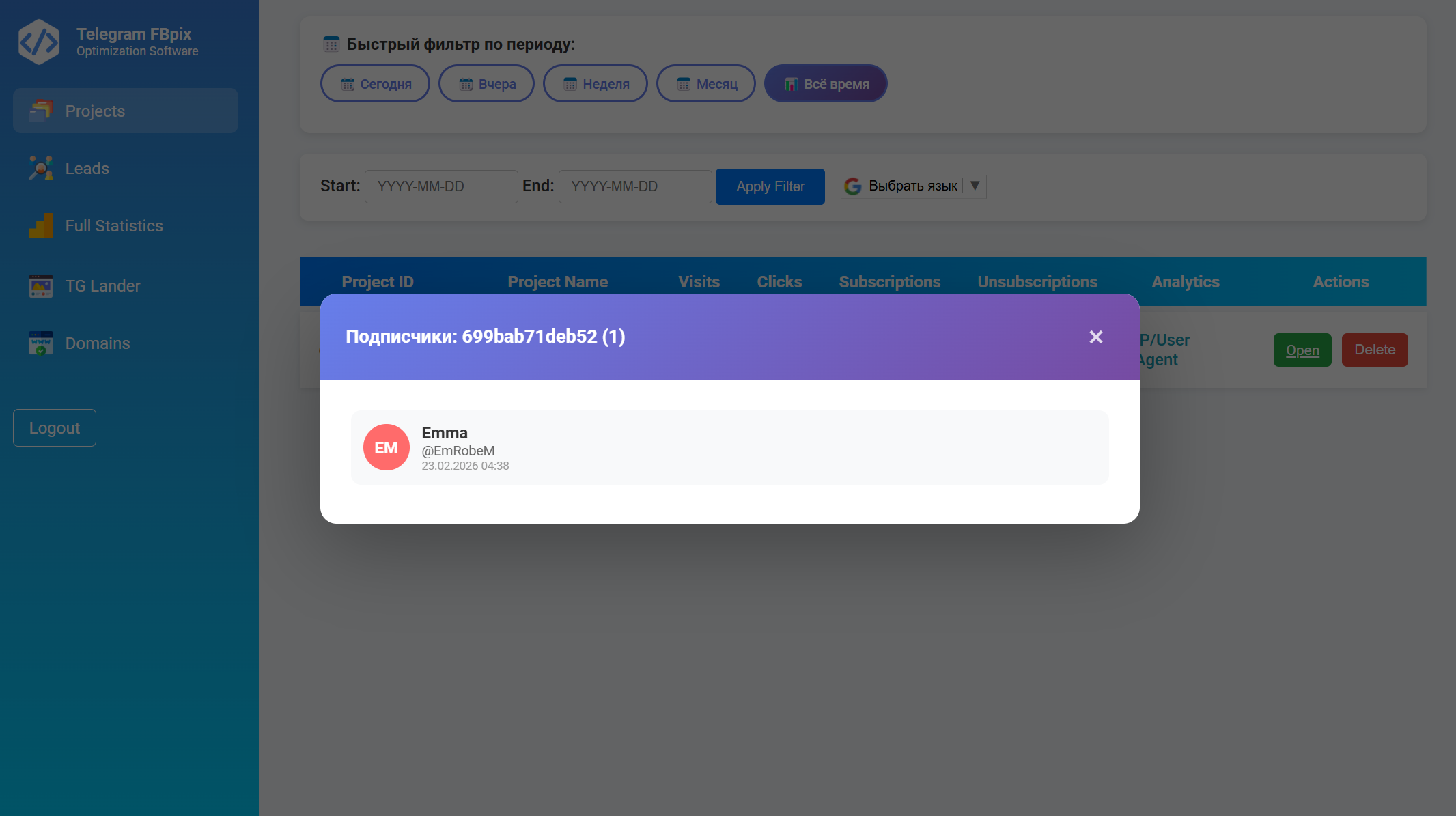
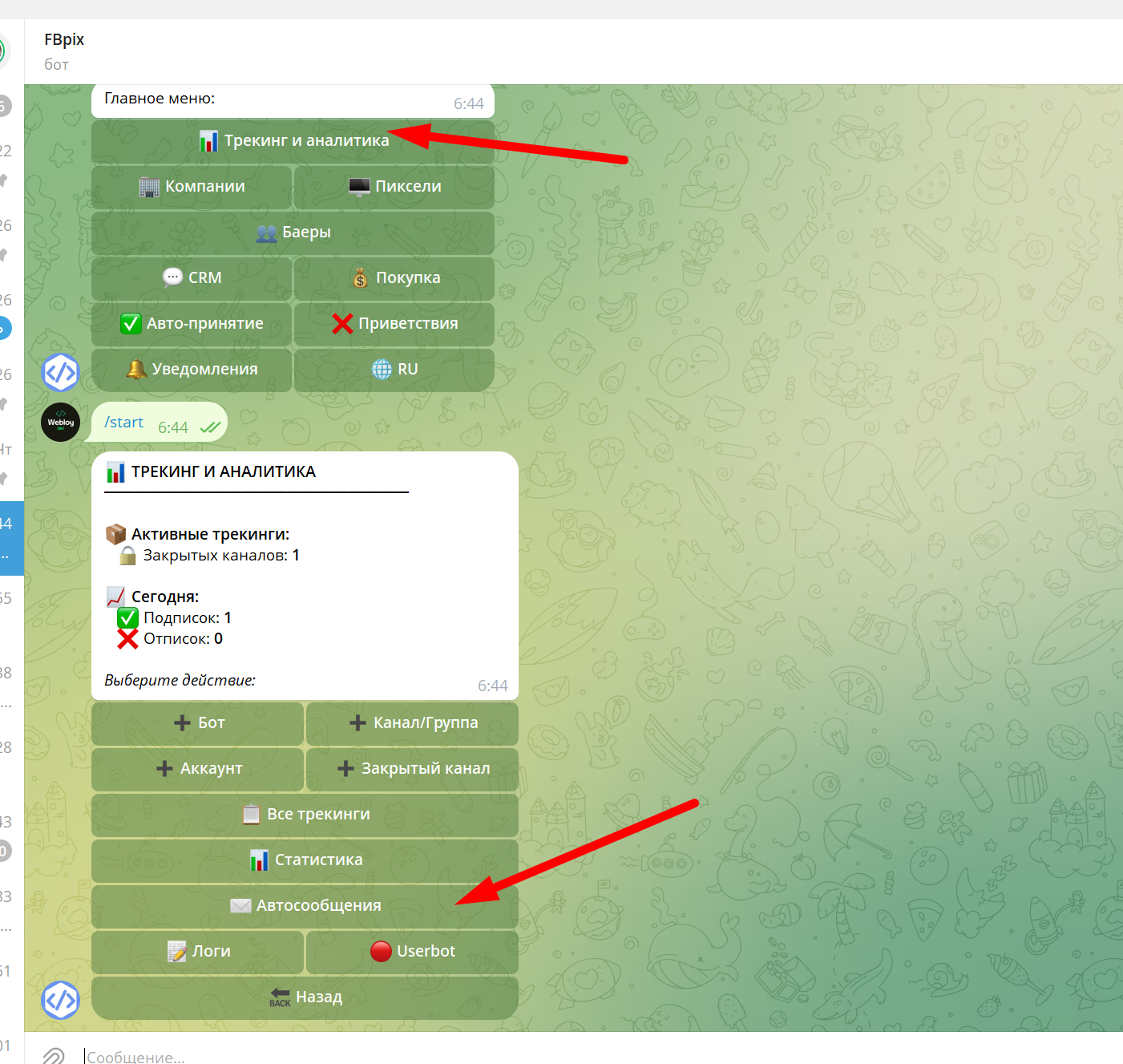
Open your projects and list of subscribers.
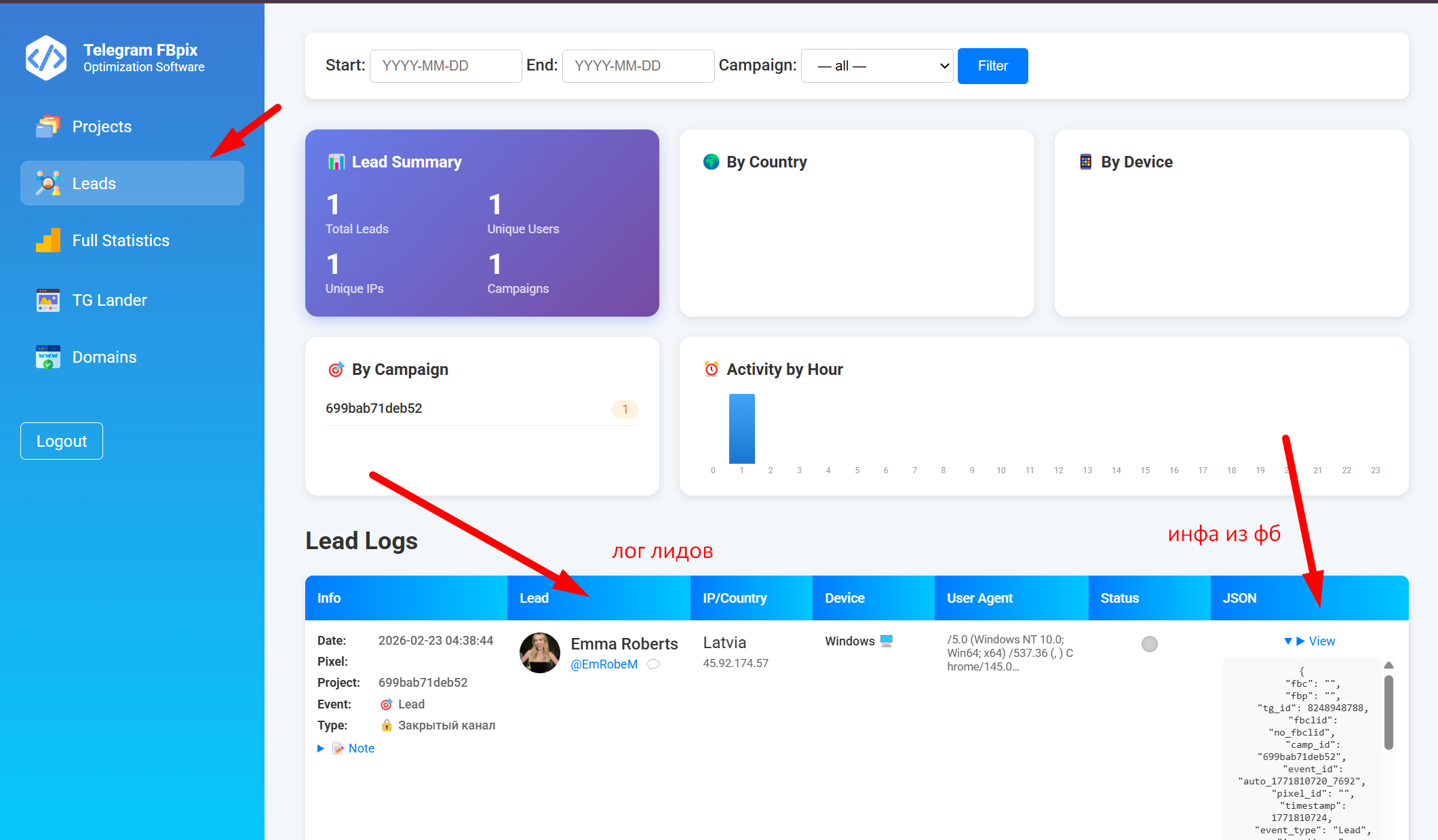
Lead logs:
6. Receiving applications and auto-messaging
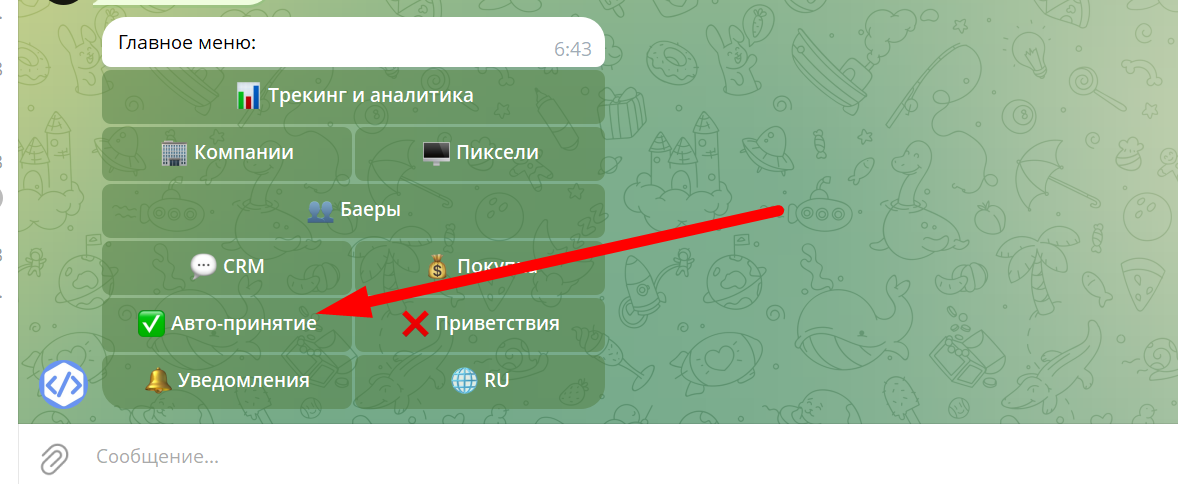
Now set up accepting applications:
- manually
- automatically
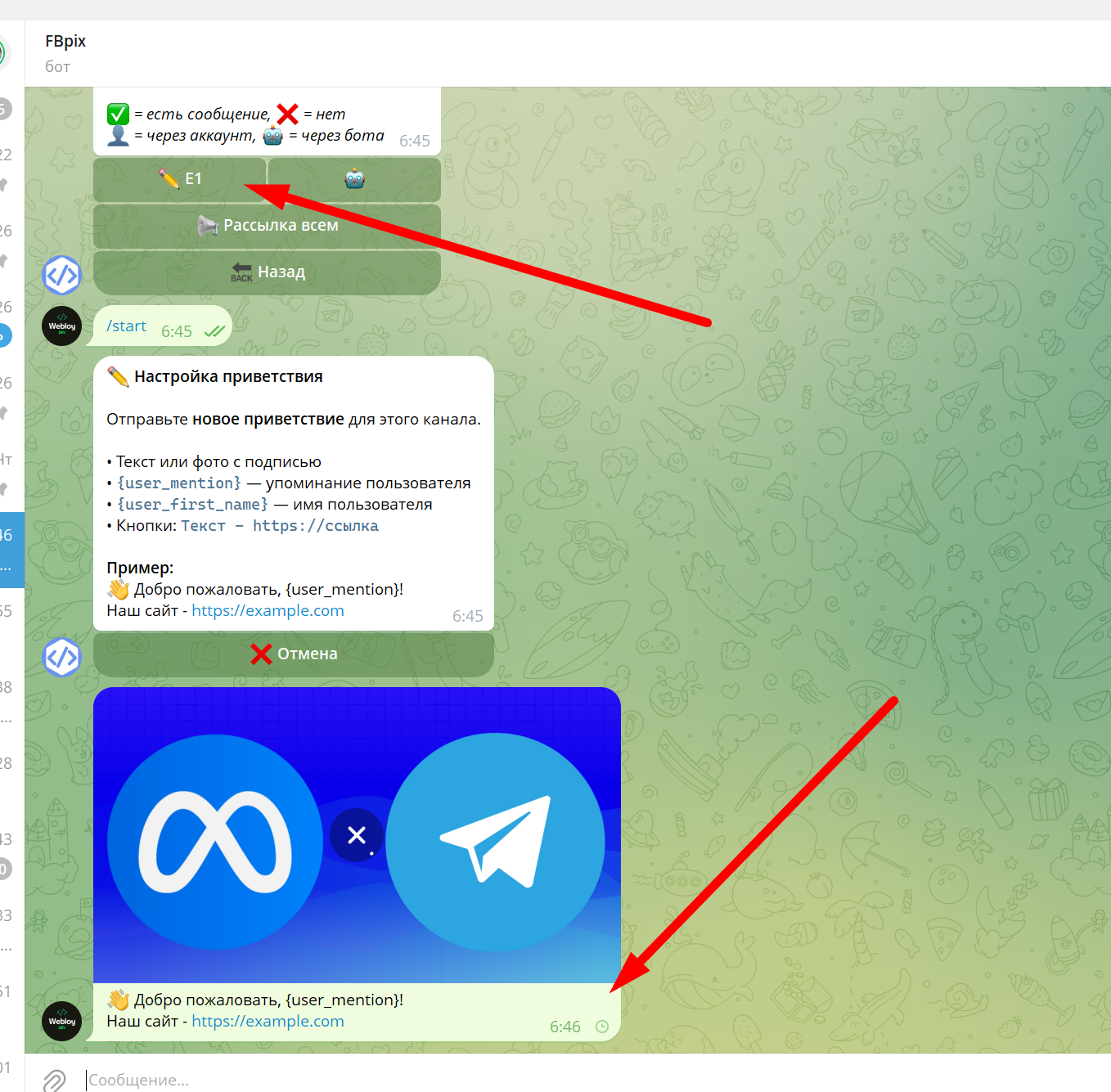
Set up an auto message.
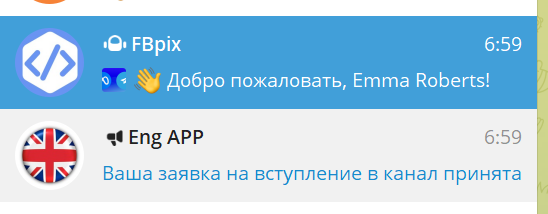
Enable or disable:

7. How to add a domain to the system
Open:
https://вашдомен/domain.php
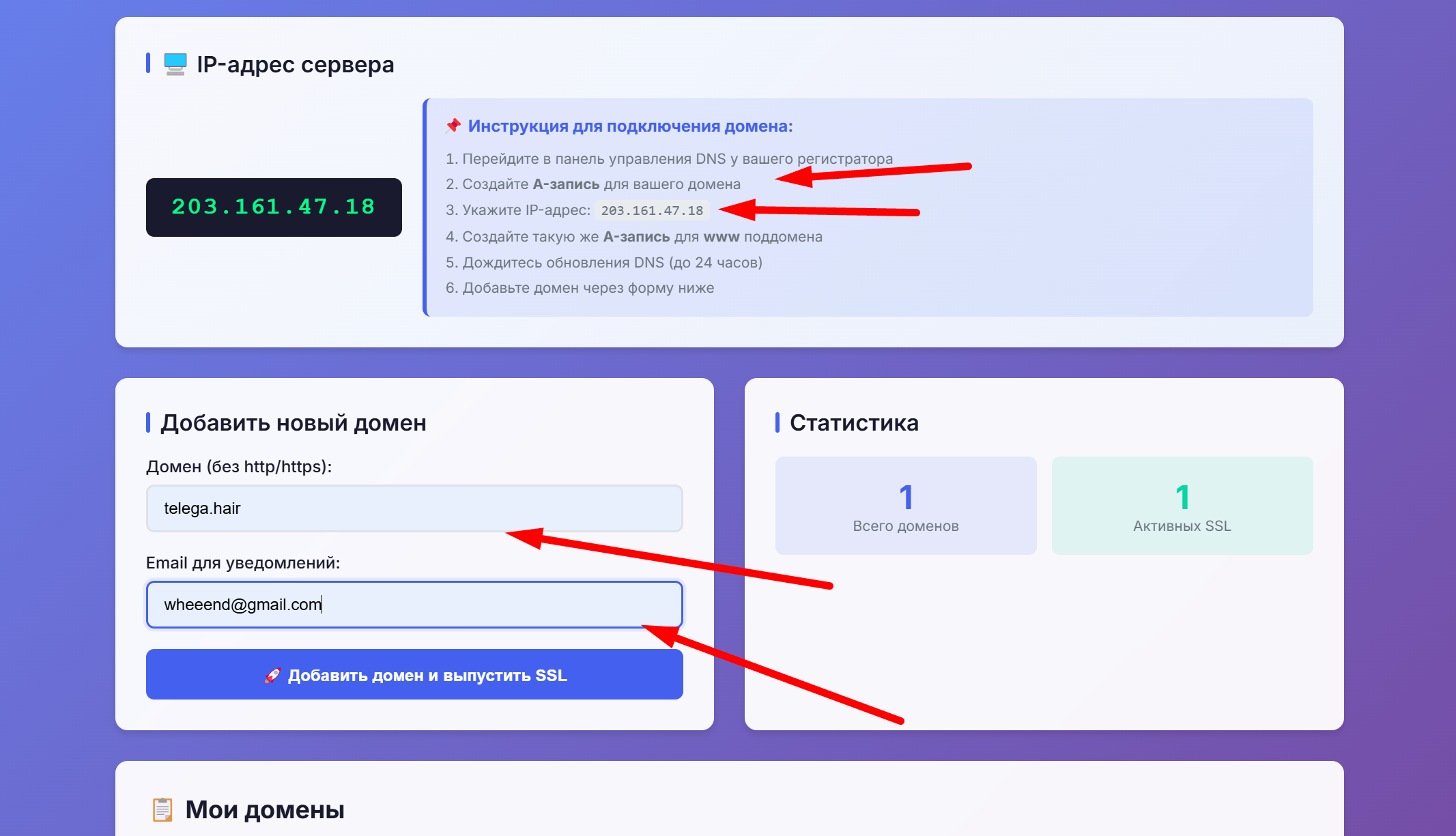
Next:
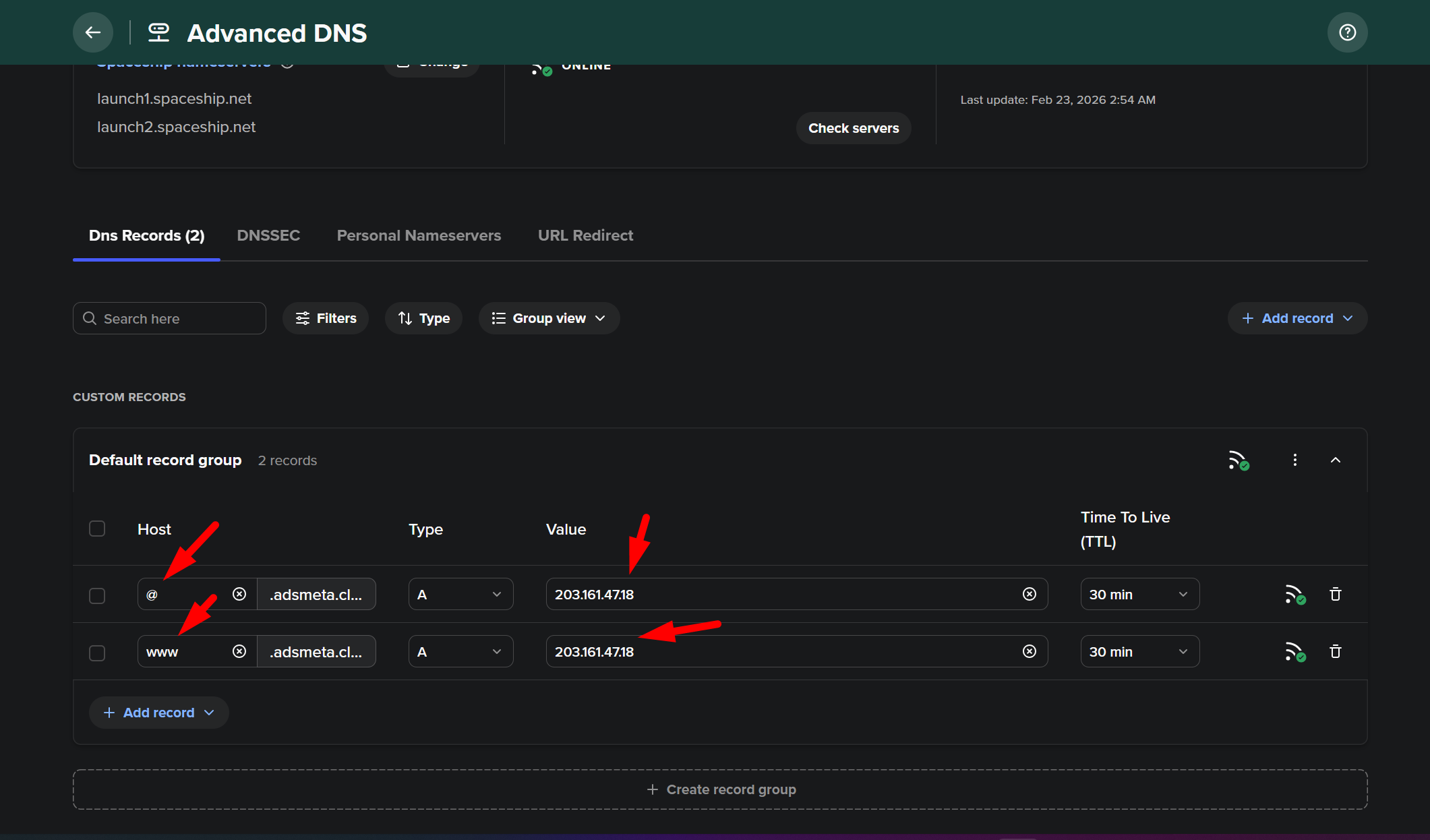
1. Go to the
DNS control panel at your registrar.2. Create
A-запись for the main domain.3. Specify
IP-адрес: 203.161.47.18.4. Create the same
A-запись for the subdomain www.5. Wait up to 24 hours for
DNS to update.6. After that, add the domain through the form.
Note: The IP in the example is indicated conditionally. Your IP is issued by the administrator.
8. Launching a link
Example working link:
https://домен.ком/index_69a1cbe7ec5a2.php?camp_id=69a1cbe7ec5a2&entity_type=chat
In
Ads Manager select the Meta pixel event by Telegram object type:- Closed channels -
Lead
- Open channels -
Subscribe
- Start of chat -
Contact
- Groups -
CompleteRegistration
9. Fbpix Rules
1. Do not place third-party links on the landing page.
2. Check the pixel only after running the ad.
3. If possible, upload your own landing page into the system for a more unique experience with Meta Ads. If necessary, it can be generated using a neural network using our templates.
4. It is recommended to use a separate domain for each channel. The system allows you to add your own domains or register them through us.
5. You cannot use third-party bots to accept requests for the channel. Our system requires a single right to accept applications; other functions can be disabled.
10. Important requirement for channel ID
ID of your channel must begin with the prefix -100.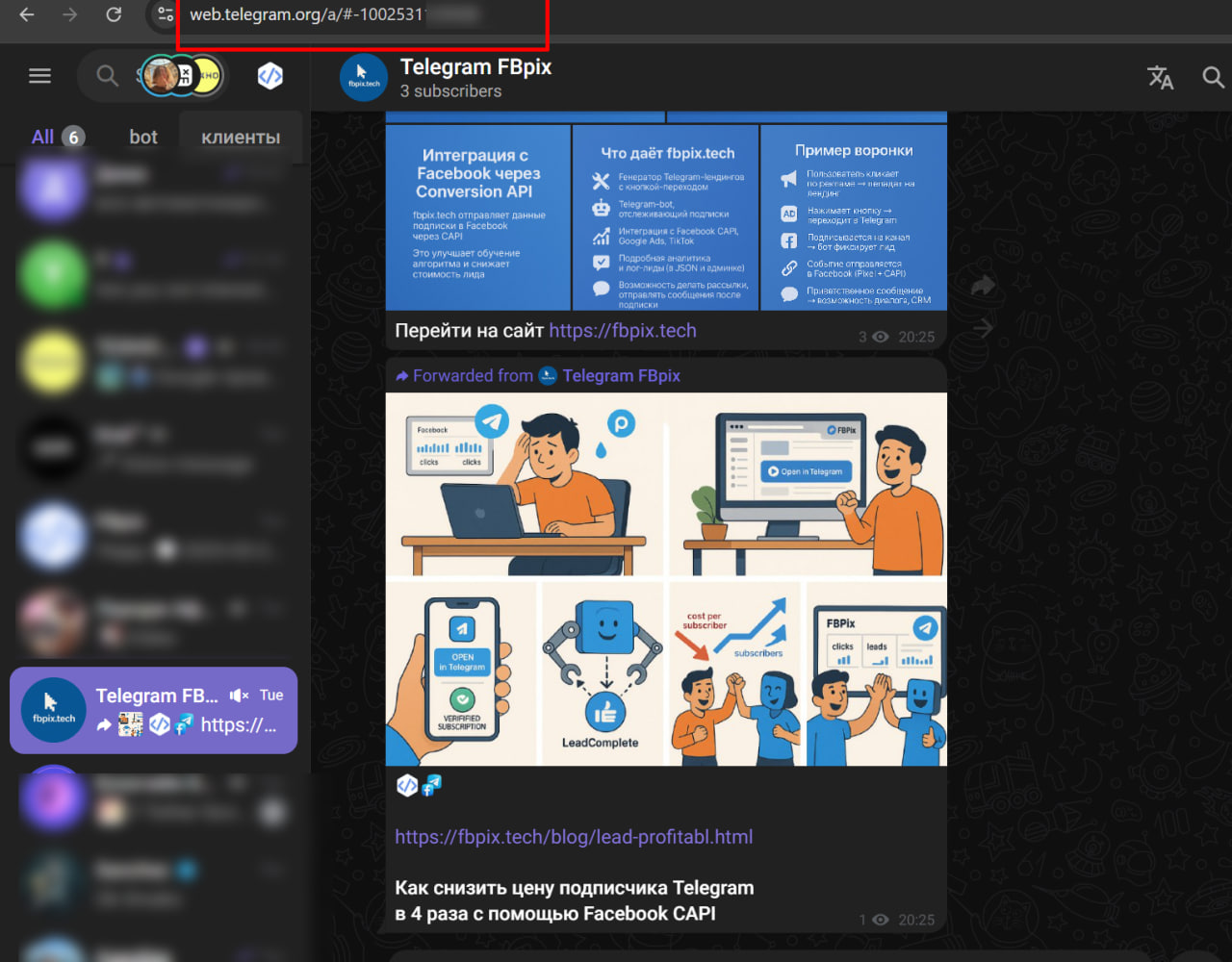
Example:
- if your ID:
23356
- correct format:
-10023356
What's next
Setting up a Company for Chats, Dialogues of Telegram accounts.
CAPI PIXEL META setting.
How to Test CAPI PIXEL?
How to add your Landing to the system?
How to Set Up Auto Message for Channels?
How to add a domain to the system?
How to Edit Text, Pictures on Landing Pages?
How to Set Up Auto Message for Channels?
How to distribute access to a team?
How to add your Landing to the system?